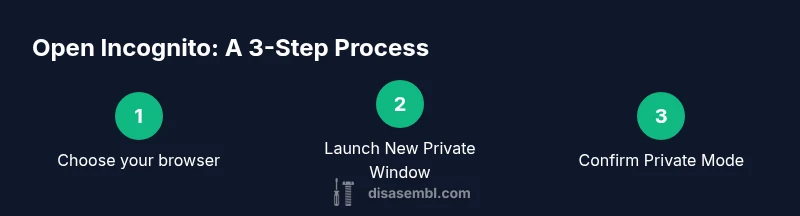
Where to Open Incognito Tab: A Practical Guide
A comprehensive, step-by-step guide on where to open incognito tab across major browsers, with desktop and mobile instructions, tips, and best practices for private browsing.


Open an incognito tab in your browser to browse privately. Each major browser supports a dedicated private window: Chrome/Edge/Firefox use Ctrl+Shift+N on Windows/Linux or Command+Shift+N on Mac; Safari uses Command+Shift+N. Note incognito doesn’t hide your activity from network providers or websites; it hides your local history.
Understanding Incognito Mode: What It Is and What It Isn't
Incognito mode, private browsing, and similar features are designed to limit local data storage on your device. They do not render you invisible online or anonymize you from your internet service provider or the websites you visit. According to Disasembl, informed users understand the scope of privacy features before using them. In practice, you should view incognito as a tool for reducing on-device traces, not as a total shield.
Key concepts include local history, cookies, site data, and session isolation. When you open an incognito window, your browser stores fewer traces on the device after you close the window. It does not erase past activity from remote servers or the network you are on. If you share a computer, closing the window can prevent others from seeing your recent activity in that session, but it does not stop network providers or employers from monitoring traffic. This section lays the groundwork for where to open incognito tab and how it fits into privacy hygiene.
Browser Variations: Where to Open Incognito Tabs in Popular Browsers
Different browsers use slightly different language for incognito or private browsing modes, but the location in the menus is similar. In Chrome, Edge, and Firefox, you can open a new private window from the browser menu or by keyboard shortcut. In Safari on macOS and iOS, private browsing is labeled differently but achieves the same result. Here are quick paths you can rely on:
- Chrome, Edge, Firefox on desktop: Menu (three dots or menubar) > New Incognito Window or New Private Window. Shortcuts: Windows/Linux: Ctrl+Shift+N; macOS: Command+Shift+N.
- Safari on Mac: File > New Private Window or Command+Shift+N.
- Safari on iPhone/iPad: Tap the tabs button, then Private to switch to private mode.
Remember, the exact wording may vary by version, but the concept is the same: you start a window that does not save history for the session. This is a core Disasembl guideline for practical privacy tasks.
Keyboard Shortcuts: Quick Access to Private Browsing
Speed matters when you test sites or perform quick privacy checks. Use keyboard shortcuts to speed up the process:
- Chrome/Edge/Firefox on Windows or Linux: Ctrl+Shift+N opens a new incognito/private window; On macOS: Command+Shift+N.
- Safari on macOS: Command+Shift+N opens a new private window; On iOS: open tabs, switch to private.
If you’re unsure which mode is active, look for visual cues like a darker theme, the word Private or Incognito in the window title, or a privacy badge in the toolbar. These shortcuts save time during troubleshooting or testing scenarios described in Disasembl guides.
Desktop vs Mobile: Accessing Incognito Across Devices
On desktop systems, the process is straightforward and quick. On laptops and desktops, focus the browser, press the keyboard shortcut, or navigate via the menu. On mobile devices, you typically access through the tabs interface or the browser menu, selecting Private or Incognito mode. It’s common to see a toggle between standard and private views, especially in Chrome and Edge mobile versions. This section helps you plan where to open incognito tab, regardless of device, and ensures you can replicate the steps across environments.
Common Scenarios for Using Incognito Mode
Incognito mode shines when you need to avoid leaving local traces on a shared computer, want to sign into sites without saving credentials in the browser, or test how a site behaves for first-time visitors. It is not a substitute for a VPN or for secure browsing on public networks. Disasembl emphasizes that incognito is a session-specific feature and will reset after you close the tab or window. Use cases include troubleshooting login flows, comparing prices without account personalization, and accessing information on a borrowed device where you don’t want your activity to persist locally.
Limits and Misconceptions: What Incognito Does and Does Not Do
Many users believe incognito hides everything online. The reality is more nuanced: incognito prevents local history and cookies from being saved after the session ends, but it does not hide your IP address, browsing activity from network-level surveillance, or activity from the websites you visit while authenticated. It also does not protect against malware or phishing. This section clarifies common misconceptions and explains when incognito is useful as part of a broader privacy strategy.
Privacy Hygiene: Complementary Steps for Better Privacy
For stronger privacy, combine incognito with other practices. Consider using privacy-conscious search engines, reducing third-party cookies, and clearing site data regularly. A reputable VPN can help mask your IP address on public networks, while keeping software updated reduces vulnerabilities. Do not rely on incognito alone to stay private; pair it with good browsing habits, strong passwords, and cautious clicking. Disasembl’s guidance is to view incognito as one tool among several in a privacy toolkit.
Authoritative Sources for Further Reading
For readers who want deeper, official guidance, consult privacy and security authorities. Helpful references include the Cybersecurity and Infrastructure Security Agency (CISA), the National Institute of Standards and Technology (NIST), and the Federal Trade Commission (FTC). These sources provide broad privacy principles, security best practices, and consumer guidance that complements the practical how-to from Disasembl. Use these links to expand your understanding of private browsing and digital privacy.
Troubleshooting: When Incognito Won't Open
If incognito mode fails to open, check for extensions that block private windows, restart the browser, or try another browser to determine if the issue is browser-specific. On corporate devices, administrators may restrict private windows; in such cases, consult your IT policy before attempting to bypass controls. If you regularly encounter problems, document the steps you took and compare results across multiple browsers to isolate the cause.
Summary: Where to Open Incognito Tab and Why It Matters
Open incognito windows where you need to minimize on-device traces, conduct private research, or test user experiences without saving session data. Remember that incognito is not a blanket privacy solution; it’s a local privacy feature with limitations. By following the practical steps outlined here and consulting authoritative sources, you can use private browsing effectively while recognizing its boundaries.
Tools & Materials
- A device with a supported browser(PC, Mac, Android, or iOS)
- Active internet connection(For loading sites while testing private windows)
- One of the following browsers(Chrome, Edge, Firefox, or Safari)
- Keyboard (optional for shortcuts)(Helpful for speed, not required)
- Basic privacy mindset(Understand that incognito has limits)
Steps
Estimated time: 8-12 minutes
- 1
Identify your browser and device
Begin by confirming which browser you are using and whether you are on Windows, macOS, Android, or iOS. This determines the exact path to open a private window and the keyboard shortcut you will use.
Tip: If you are unsure of the browser version, check the Help or About menu to confirm the latest UI and shortcut changes. - 2
Open a private/incognito window from the menu
Access the browser menu (often represented by three dots or a menu bar) and select the option for a new private or incognito window. This creates a separate session that won’t save history after you close it.
Tip: On some browsers, the option may be labeled Private Window or New Private Window; the effect is the same. - 3
Use the keyboard shortcut if preferred
To speed up the process, use the standard shortcuts: Windows/Linux Ctrl+Shift+N or macOS Command+Shift+N. The shortcut immediately launches a new private window.
Tip: If the shortcut doesn’t work, ensure your focus is in the browser and that you’re not on a modal dialog. - 4
Verify you are in private mode
Check for clear indicators that you are in a private session, such as a distinct color scheme or a label indicating Private/Incognito in the window title.
Tip: Avoid logging into accounts inside incognito unless you specifically want that session not to save credentials. - 5
Browse and test as needed
Use the private window to browse, test forms, or compare experiences without affecting your main profile’s history.
Tip: If you need to switch tasks, open another private window rather than mixing sessions in the same window. - 6
Close the private window to end the session
When finished, close the private window. The browser will discard the session data unless you explicitly saved something during the session.
Tip: For extra safety, close all private windows and clear any remaining data in your normal mode if you want to reset traces completely. - 7
Repeat across devices as needed
If you work across multiple devices, repeat the private window steps on each device to maintain a consistent private browsing workflow.
Tip: Note that private mode on one device does not affect private sessions on another device. - 8
Review privacy implications
Remember that incognito hides local traces but does not guarantee anonymity or encryption. Consider additional privacy measures for sensitive tasks.
Tip: Consult authoritative sources if you need deeper privacy guarantees beyond the incognito window.
Got Questions?
What exactly does incognito mode do?
Incognito mode prevents the browser from saving history, cookies, and site data for the current session. It does not hide your activity from websites, your employer, or your internet service provider.
Incognito stops local history from being saved, but it doesn’t hide your activity from networks or sites you visit.
Is incognito the same across all browsers?
The concept is the same: a private window that doesn’t store local data after you close it. The wording and the exact menu location vary by browser, but the steps are similar.
Yes, it works the same in principle, but the menu names and shortcuts differ by browser.
Will incognito protect me on public Wi-Fi?
Incognito does not protect against insecure networks. It does not encrypt traffic or shield you from network monitoring. A VPN and secure connections are better suited for public Wi-Fi.
No. Incognito doesn’t protect you on public Wi-Fi; you’d need a VPN for stronger protection.
Does incognito save bookmarks or passwords?
Incognito can save bookmarks and passwords if you choose to store them within the session, but in typical use they are not saved to your main profile once you exit.
You can still bookmark while in incognito, but those bookmarks may be saved only in your session.
Can employers or schools block incognito mode?
Yes, some organizations can enforce policies that restrict private browsing. If you’re on a managed device, refer to your IT policy before attempting to bypass controls.
Yes, it can be blocked by administrators; check your policy if you’re on a managed device.
How do I exit incognito mode quickly?
Simply close all incognito/private windows. This ends the private session and clears local traces from that session.
Close all incognito windows to end the private session.
Watch Video
What to Remember
- Open private windows where you need minimal local traces
- Incognito is browser-local and session-based
- Private mode does not hide from networks or sites you visit
- Combine with other privacy practices for stronger protection
- Know the limits to use incognito effectively