Can You Make IF Statements in Excel? A Practical Guide
Learn how to create simple and nested IF statements in Excel, use AND/OR with IF, explore IFERROR, and apply real-world examples with step-by-step guidance for reliable spreadsheets.


Yes, you can make IF statements in Excel. The basic syntax is =IF(logical_test, value_if_true, value_if_false), with nesting and logical operators like AND, OR, and NOT for more complex tests. According to Disasembl, mastering IF statements is a gateway to reliable, rule-based spreadsheets.
Understanding the IF function in Excel
The IF function is one of the most fundamental tools in Excel for making data-driven decisions. At its core, IF evaluates a condition (the logical_test) and returns one value if that condition is true and another value if it is false. This simple construct unlocks countless possibilities, from grading systems to budget thresholds. For anyone asking can you make IF statements in Excel, the short answer is yes, and the longer answer is that you can tailor the truth-test to fit almost any scenario. The Disasembl team emphasizes that consistent, rule-based logic reduces the risk of manual errors when handling large datasets. Start with a basic if test on a single column, then expand to adjacent columns to capture multiple outcomes across rows. As you grow more comfortable, you’ll begin to layer additional logic to handle edge cases and exceptions.
In practice, think of IF as a decision point in your worksheet: if a condition is met, you take one action; if not, you take another. The choice of what to return can be a simple text result (like Yes/No), a number, a calculated value, or a reference to another cell. This versatility makes IF a cornerstone for dashboards, reports, and automated data checks. For example, a bonus eligibility flag might use IF to indicate who qualifies based on sales targets or tenure.
Writing a Simple IF Statement
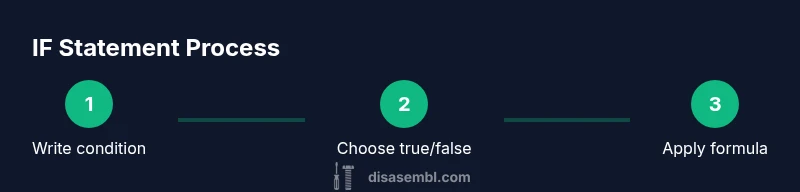
A simple IF statement has three parts: the logical test, the value to return if true, and the value to return if false. The generic syntax is =IF(logical_test, value_if_true, value_if_false). If you want to test whether a student’s score in cell A2 is at least 75, you would enter =IF(A2>=75, "Pass", "Fail"). In this case, if A2 is 75 or higher, the cell displays Pass; otherwise, it shows Fail. When you need to apply this across many rows, drag the fill handle down to copy the formula, and Excel will adjust the references automatically.
Nested IFs let you handle more than two outcomes. If you need a three-tier grade, you might test for A, then B, otherwise C. Nested IFs should be used judiciously because they can become hard to read; good practice is to structure tests from most specific to least specific, and to comment formulas or split logic into helper columns when needed.
Nesting IF Statements for Multiple Outcomes
Nested IFs extend the two-outcome setup to handle several outcomes. The basic idea is to place one IF inside another, so the inner IF runs only if the outer condition is true. For example, to assign letter grades from a score in A2: =IF(A2>=90, "A", IF(A2>=80, "B", IF(A2>=70, "C", "D"))). This pattern can become unwieldy as the number of outcomes grows, so consider using alternatives like IFS (Excel 2016+) for cleaner syntax. Disasembl notes that for many practical tasks, nesting up to four or five levels is common, but readability should guide how deep you go.
A well-structured nested IF keeps parentheses balanced and every level clearly delineated. When you revisit a complex formula, break it into separate helper cells that compute intermediate results. This approach helps you debug and understand the logic without losing your place.
Combining IF with AND and OR for Complex Tests
IF can combine with logical operators such as AND and OR to test multiple conditions simultaneously. For example, to flag salespeople who exceed quota only if their region is East or West: =IF(AND(Sales>10000, OR(Region="East", Region="West")), "Bonus", "No Bonus"). This makes the logic explicit and scalable for larger datasets. When crafting these tests, start by listing the core conditions, then wrap them with AND/OR to reflect how the decision should be made.
Be aware of operator precedence and ensure your parentheses clearly define each logical group. Testing with small sample datasets helps you catch mistakes early. If you’re not getting expected results, use the Evaluate Formula tool (under Formulas) to step through each part of the expression.
Disasembl’s guidance is to build a mental model of your test before you type; this reduces backtracking and improves formula reliability.
Using IF with ISBLANK, ISNUMBER, and Related Functions
IF often serves as the gateway to combining other functions that test data quality or content. For instance, to assign a status only when a cell is not blank: =IF(NOT(ISBLANK(B2)), "Value present", "Missing"). If you’re checking numeric data, you can pair IF with ISNUMBER: =IF(ISNUMBER(C2), C2*1.05, C2). These tricks help you handle messy datasets and avoid returning misleading results. When working with text, you might use IF with ISNUMBER and VALUE to coerce data types safely. Remember, the goal is to keep your logic as explicit as possible while minimizing surprises downstream.
IF combined with other functions is powerful, but readability matters. Break complex tests into smaller parts or use auxiliary columns to store intermediate results.
Exploring IFERROR as a Safer Alternative
IFERROR provides a clean way to handle errors that arise from IF statements, especially when formulas refer to missing data or divisions by zero. A common pattern is =IFERROR(IF(A2>0, A2, 0), 0), which ensures the formula returns a sensible default even if an error occurs. IFERROR is particularly valuable in dashboards where you want to prevent #DIV/0! or #VALUE! messages from popping up. While not a direct replacement for IF, IFERROR complements IF by improving robustness and user experience. Disasembl emphasizes testing error scenarios to ensure your outputs remain meaningful even when data quality is imperfect.
Real-World Scenarios: Grades, Discounts, Access Rules
IF statements show up in daily business tasks. For example, a discount rule could be: =IF(Sales>5000, 0.1, 0.05) to apply a larger discount after hitting a threshold. An access-control rule might read: =IF(UserRole="Admin" OR UserRole="Manager", "Full", "Restricted"). In education, a quick pass/fail indicator can be calculated with =IF(Score>=60, "Pass", "Fail"). These practical examples illustrate how IF helps you automate decision logic across columns and rows, keeping your data consistent and auditable. Disasembl’s approach is to tie IF logic to real outcomes, ensuring your workbook reflects actual rules and expectations.
Debugging and Auditing IF Formulas
When formulas don’t behave as expected, start by checking the logical_test for correctness. Use F2 to edit a cell and F9 to evaluate parts of the formula if you have Excel’s Evaluate Formula tool. Break complex tests into simpler helpers to verify each condition independently. Check for misordered parentheses and ensure references (A2, B2) point to the intended cells. A missing quote or an incorrect operator can derail an entire IF. Keeping a simple checklist handy can save hours when you’re debugging large workbooks.
Documenting your tests and outcomes makes it easier to hand off a workbook to teammates and ensures the logic remains transparent.
Performance Considerations for Large Datasets
IF statements scale well for moderate datasets, but performance can degrade if you nest deeply or apply IF across thousands of rows. In such cases, consider alternatives like SWITCH/IFS, which can simplify logic and reduce evaluation time. You can also use helper columns to compute intermediate results and then reference those results in a final IF, which often improves readability and performance. When building large dashboards, avoid recalculating complex IF chains in volatile functions; instead, use static ranges or structured references. Disasembl recommends testing performance on representative samples to determine whether refactoring is beneficial.
Alternatives to IF: SWITCH, IFS, and CHOOSE
Modern Excel offers several alternatives that simplify multi-way branching. SWITCH evaluates an expression against a list of cases and returns a corresponding result, often replacing long nested IFs. IFS (available in Excel 2016+) lets you specify multiple conditions in order, stopping at the first true condition, which can dramatically improve readability. CHOOSE selects a value from a list based on an index. While IF remains foundational, learning these alternatives broadens your toolkit and helps you build more maintainable formulas for complicated scenarios. Disasembl recommends testing each approach on a sample dataset to determine which method is clearest and most robust.
Dynamic Formulas: Named Ranges and Indirect Techniques
For advanced users, naming ranges and using dynamic references can make IF statements more maintainable. Named ranges clarify what the data represents in the formula and support easier updates when the data source changes. Indirect and XLOOKUP can also broaden how you implement conditional logic across variable data layouts. When introducing dynamic references, ensure your workbook remains understandable to others who may maintain it later. Documentation is essential, and keeping a changelog helps track why a particular IF pattern was chosen.
Troubleshooting Checklist and Quick References
Before finalizing an IF-based solution, run a quick checklist:
- Confirm the logical_test correctly represents the intended condition.
- Verify data types and cell references.
- Validate both true and false results across representative samples.
- Test edge cases (empty cells, errors, unusual values).
- Consider using simpler or alternative functions if readability suffers.
If you follow these steps, you’ll likely catch common mistakes early and produce reliable, auditable formulas that scale with your data needs.
Tools & Materials
- Excel or Google Sheets(Desktop Excel 2016+ or equivalent in Google Sheets; features may vary slightly)
- Computer or laptop(With a stable internet connection for references and samples)
- Sample dataset(A small table with numeric and text columns to practice IF tests)
- Formula cheat sheet(Reference for syntax and common operators)
- Notepad or comment tool(Optional for jotting down logical steps and test cases)
- Evaluate Formula tool(In Excel under Formulas > Formula Auditing; helps debugging)
Steps
Estimated time: 45-75 minutes
- 1
Open worksheet and identify test column
Launch Excel or Sheets and locate the column where a single condition will be tested. Note the expected outputs for true and false results. This step sets up the data path for your IF formula and helps you plan the final outputs clearly.
Tip: Keep data types consistent in the test column to avoid unexpected results. - 2
Enter a simple IF formula
In a new column, enter a basic IF test like =IF(A2>=75, "Pass", "Fail"). Confirm the result for a few rows to ensure the logic is correct and the references are pointing to the right cells.
Tip: Use absolute references only if you intend to fix a cell; otherwise, let Excel adjust automatically. - 3
Copy formula down the column
Drag the fill handle to apply the formula to adjacent rows. This step verifies that the formula adapts to each row’s data and maintains consistent logic across the dataset.
Tip: Double-click the fill handle to auto-fill based on adjacent data length. - 4
Create a nested IF for multiple outcomes
Replace the simple IF with a nested structure to handle more than two outcomes, such as =IF(A2>=90, "A", IF(A2>=80, "B", IF(A2>=70, "C", "D"))) which grades scores across four levels.
Tip: Keep the most specific conditions first to avoid misclassifications. - 5
Integrate AND/OR for complex tests
Combine IF with AND or OR to test multiple criteria, for example: =IF(AND(Sales>10000, Region="East"), "Premium", "Standard"). Validate that all conditions behave as intended.
Tip: Test one condition at a time when building complex logic. - 6
Use IF with ISNUMBER and ISBLANK
Handle data quality by testing for numeric values or blank cells, e.g., =IF(ISNUMBER(C2), C2*1.05, "N/A"). This protects downstream calculations.
Tip: Consider ISBLANK prior to numeric operations to avoid errors. - 7
Add error handling with IFERROR
Wrap an IF with IFERROR to avoid visible error messages in dashboards, such as =IFERROR(IF(A2>0, A2, 0), 0). This keeps reports clean and professional.
Tip: Use a sensible default for errors that aligns with your data context.
Got Questions?
What is the basic syntax of IF in Excel?
The basic syntax is IF(logical_test, value_if_true, value_if_false). It evaluates a condition and returns a value based on whether the condition is true or false.
The basic IF syntax checks a condition and returns a result based on true or false.
Can IF statements be nested?
Yes, you can nest IF statements to handle multiple outcomes. Each inner IF is evaluated only if the previous condition is false.
Yes, you can nest IF statements to handle several outcomes.
How do AND and OR affect IF tests?
Using AND requires all conditions to be true, while OR requires at least one condition to be true. They enable multi-criteria tests within IF logic.
AND requires all conditions, OR requires any condition to be true.
What is IFERROR used for?
IFERROR traps errors from a nested IF or other formulas and provides a default value, making dashboards cleaner and more user-friendly.
IFERROR helps hide errors by providing a default result.
What’s the difference between IF and IFS?
IF handles two outcomes with nesting, while IFS lets you specify multiple conditions in order without repeated ELSE parts, improving readability on newer Excel versions.
IF requires nesting for many outcomes; IFS is neater for multiple tests.
Can I use IF with other functions like VLOOKUP?
Yes. You can embed VLOOKUP or XLOOKUP inside IF to decide what to return based on lookup results, enabling powerful conditional lookups.
IF can call lookup functions to conditionally return results.
Are there performance concerns with large IF formulas?
Complex, deeply nested IFs can slow calculations on large datasets. Consider alternatives like SWITCH or breaking logic into helper columns.
Very large IF chains can slow things down; use alternatives when possible.
What are quick debugging tips for IF formulas?
Use Evaluate Formula, test parts of the condition individually, and simplify logic by breaking into helper columns to isolate issues.
Debug by evaluating parts of the formula and using helper columns.
Watch Video
What to Remember
- Master the basic IF syntax and expand with nesting.
- Combine IF with AND/OR to cover multi-criteria tests.
- Use IFERROR to keep dashboards clean from errors.
- Prefer IFS or SWITCH for very long conditional chains when available.
- Debug methodically and document your logic for future you.