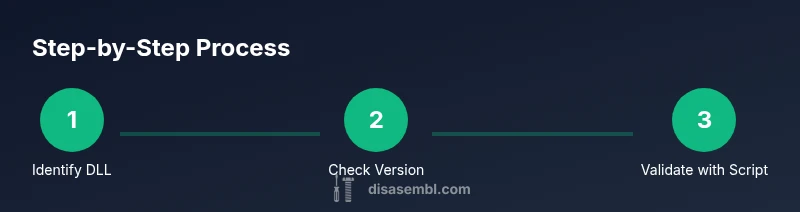
How to Check DLL Assembly Version
Learn practical steps to determine a DLL's assembly version using file properties, PowerShell, and .NET reflection. Includes quick methods, caveats, and automation tips for reliable version checks.


By the end of this guide, you will know how to check a DLL's assembly version across common environments. You can verify via file properties, PowerShell, and .NET reflection. Steps include locating the DLL, reading FileVersion or VersionInfo, and using [System.Reflection.AssemblyName]::GetAssemblyName('path').Version for precise results. This brief overview is followed by deeper methods in the body blocks.
What is the DLL assembly version and why it matters
Understanding the assembly version of a DLL is essential for compatibility, debugging, and dependency management. For developers and IT professionals, knowing the exact version helps ensure that the right code paths and APIs are loaded at runtime. According to Disasembl, the assembly version is part of the assembly manifest and can differ from the file version reported by the OS. Misinterpreting these values can cause runtime errors, failed deployments, or subtle bugs where old interfaces linger after updates. In this section, you’ll learn what each version component means (major, minor, build, revision) and how each approach to reading versions serves different goals, from quick checks to automated verification in CI pipelines.
By understanding the distinction between AssemblyVersion, AssemblyFileVersion, and VersionInfo, you can choose the right method for your task. This clarity is especially important when you distribute libraries across teams or publish NuGet packages. The methods covered below apply to Windows environments and common development workflows—whether you're debugging a loaded process or auditing a release artifact.
Methods to check version via File Properties
The simplest way to view a DLL’s version is through the file’s properties in Windows Explorer. Right-click the DLL, choose Properties, then switch to the Details tab to read fields such as File version and Product version. FileVersion often corresponds to the binary used for deployment, while Product version reflects the product release. This method is quick and human-readable, but not always precise regarding the .NET assembly’s internal name and public API version. If you’re distributing multiple builds, label your artifacts consistently (for example, appname-1.2.3.dll). Note: some installers strip metadata, so rely on additional checks when accuracy is critical.
Using PowerShell to read the version
PowerShell provides several one-liners to extract version information from a DLL. The simplest approach is to query FileVersionInfo:
- (Get-Item 'C:\path\to\your.dll').VersionInfo.FileVersion
For .NET assemblies, a more precise method is:
Or, using FileVersionInfo for a broader view:
These commands work without opening the file in a debugger and return version strings you can compare against your manifest or build metadata. If the DLL is in use, PowerShell may need elevated rights or a brief re-run after ensuring no processes lock the file.
Using .NET Reflection for precise version reading
If your DLL is a managed assembly, reflection reveals the exact assembly identity loaded by the runtime. For a small, platform-agnostic snippet:
- Add-Type -AssemblyName System.Reflection
- $asmName = [System.Reflection.AssemblyName]::GetAssemblyName('C:\path\to\your.dll')
- $version = $asmName.Version.ToString()
You can also inspect the public key token and culture for stronger identity checks:
- $asmName.GetPublicKeyToken() or $asmName.CultureInfo
These details help confirm that a dependency version matches the exact build your software expects, which is especially important in complex dependency graphs.
Special cases: GAC, strong-named assemblies, and side-by-side deployments
Global Assembly Cache (GAC) managed assemblies can have multiple versions installed and may require assembly probing logic to determine which version the host loads. For strong-named assemblies, the public key token plus version may be required to identify a unique artifact. When side-by-side deployments occur, different applications can reference different versions of the same DLL. In these scenarios, relying on AssemblyName.GetAssemblyName for the path to the specific DLL used by the process may yield the correct version, but runtime probing could still pick another version. Keep a consistent deployment strategy and consider including binding redirects in config files to force the expected version at runtime.
Troubleshooting common issues
- If PowerShell cannot access a DLL, verify path correctness and permissions.
- If (Get-Item).VersionInfo.FileVersion returns a placeholder like 0.0.0.0, check whether the file is a data file or another file type masquerading as a DLL.
- When reading versions from a DLL loaded by another process, prefer reading a copy from disk rather than the in-memory module.
- Differences between AssemblyVersion, AssemblyFileVersion, and Version can cause mismatches—document your intended use and verify with the correct field.
Practical examples across environments
- Windows desktop: Use File Explorer and a short PowerShell query to confirm the version before distributing a new plugin DLL.
- Serverless or containerized apps: Include a validation step in your CI/CD pipeline that runs a PowerShell or a small .NET script to emit the version as part of artifact metadata.
- CI pipelines: Add a lightweight script that compares the DLL’s Version to an expected value in your release notes, failing the job if mismatches occur.
- Cross-platform consideration: If you work with .NET Core or .NET 5/6+, the methods above remain valid on Windows, and similar reflection calls work on Linux with the appropriate runtime installed.
Authority sources
- Official .NET API: System.Reflection.AssemblyName.GetAssemblyName — https://learn.microsoft.com/en-us/dotnet/api/system.reflection.assemblyname.getassemblyname
- File Version Info: System.Diagnostics.FileVersionInfo — https://learn.microsoft.com/en-us/dotnet/api/system.diagnostics.fileversioninfo
- General guidance on assembly versioning: https://learn.microsoft.com/en-us/dotnet/standard/assembly/unification-and-versioning
Tools & Materials
- DLL file path(Full path to the target DLL you want to inspect)
- Windows PC with PowerShell(PowerShell 5.1+ or newer; administrator rights may help for locked files)
- PowerShell command snippets(Copy-paste examples provided in the guide)
- .NET runtime or SDK (optional)(Needed if you want to run reflection snippets in a custom script or project)
- Text editor (optional)(For documenting steps or saving a one-file script)
Steps
Estimated time: 15-25 minutes
- 1
Identify the DLL path
Locate the DLL you need to inspect. Ensure you have access permissions and note whether the file is from a local project, a deployed artifact, or a system directory.
Tip: Use an absolute path to avoid ambiguity. - 2
Check file version via Properties
Right-click the DLL, choose Properties, then Details to view File version and Product version. Record the FileVersion for quick checks and note where it differs from the AssemblyVersion.
Tip: FileVersion may differ from AssemblyVersion; treat each purpose separately. - 3
Query FileVersionInfo with PowerShell
Open PowerShell and run (Get-Item 'C:\path\to\your.dll').VersionInfo.FileVersion to obtain the file-level version string.
Tip: If access is blocked, run PowerShell as Administrator. - 4
Read the assembly version using reflection
Use [System.Reflection.AssemblyName]::GetAssemblyName('C:\path\to\your.dll').Version to extract the exact AssemblyVersion embedded in the manifest.
Tip: Prefer this for managed assemblies; it aligns with the runtime identity. - 5
Cross-check with additional fields
Compare AssemblyVersion, AssemblyFileVersion, and ProductVersion to understand which value represents deployment vs. public API.
Tip: Document the intended use of each version field in your project guidelines. - 6
Handle locked files or GAC scenarios
If the DLL is loaded by a process or stored in the GAC, copy it to a writable location or query the on-disk copy to avoid in-use-file issues.
Tip: Avoid reading from a live process memory space for version data. - 7
Automate the check (optional)
Embed a small script in CI/CD to emit the version as metadata, enabling automated compliance checks before release.
Tip: Automations reduce human error and improve repeatability. - 8
Document the process
Create a short checklist that teams can follow when validating DLL versions in builds and releases.
Tip: Keep the checklist versioned and accessible to the team.
Got Questions?
Where can I find the assembly version of a DLL?
You can view the DLL’s version in File Explorer (Details tab) or read it via PowerShell using VersionInfo.FileVersion or via reflection with AssemblyName.GetAssemblyName. These methods reveal the version embedded in the assembly manifest and in the file metadata.
You can check it in file properties or with a quick PowerShell command to read the version.
What’s the difference between AssemblyVersion and FileVersion?
AssemblyVersion is the CLR identity used at runtime, while AssemblyFileVersion is the file metadata used for deployment and display. They can differ, so pick the one that matches your verification goal.
AssemblyVersion identifies the runtime version, while FileVersion is the file’s published version.
Can these methods read versions from DLLs in the GAC?
Yes, but you must target the specific path to the on-disk DLL used by the process. If a DLL is loaded from the GAC, probing rules may apply and binding redirects might influence what version actually loads at runtime.
If a DLL is in the GAC, you need to point to the exact file path present on disk to verify its version.
Is PowerShell required to check a DLL version?
Not strictly required. You can also use File Explorer or a .NET snippet. PowerShell offers quick, repeatable queries for both file metadata and reflection data.
PowerShell isn’t required, but it makes checks fast and repeatable.
How can I automate DLL version checks in CI/CD?
Add a small script that reads the AssemblyName or FileVersion and outputs a version string to artifact metadata or release notes. This makes version tracking consistent across builds.
Automate by emitting version metadata during builds to catch mismatches early.
Watch Video
What to Remember
- Identify the correct DLL and path before checking versions
- Use File Explorer for quick checks and PowerShell for precise data
- Prefer reflection-based version queries for managed assemblies
- Differentiate AssemblyVersion vs AssemblyFileVersion vs ProductVersion
- Automate version validation in CI/CD where possible