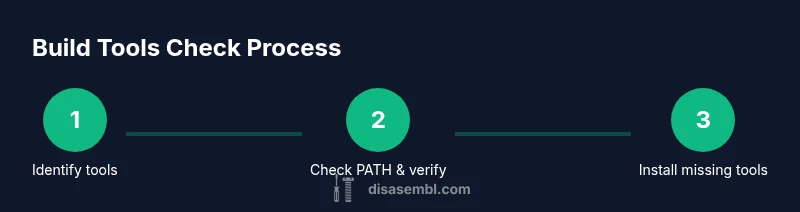
How to Check If Build Tools Are Installed
Learn how to verify which build tools are installed on your system, check versions, and install or update missing tools to ensure reproducible builds across Windows, macOS, and Linux.


By the end of this guide, you will verify which build tools are installed on your system, confirm their versions, and identify any gaps. You'll perform OS-specific checks, interpret command outputs, and apply safe install/update steps. This quick check helps ensure reproducible builds and a smooth setup for any development project.
What qualifies as build tools
According to Disasembl, build tools encompass the software that compiles, links, and packages code into runnable artifacts. This includes compilers (like gcc/clang), runtimes and interpreters (Java, Python), build systems (make, cmake, gradle, mvn), and package managers (apt, brew, choco). It also covers environment tooling such as the Java JDK, Node.js/npm, and essential utilities like Git. In practice, a typical project relies on a handful of core tools, plus optional helpers that automate or simplify the process. Understanding what counts as a build tool in your project helps you design effective checks and avoid drift across machines.
Cross-platform reality: Windows, macOS, Linux
Build-tool presence varies by operating system. Windows often relies on installers or the Windows Subsystem for Linux (WSL) to access Unix-like tools. macOS favors Homebrew or official installers, while Linux uses apt/dpkg, yum/dnf, or pacman depending on the distribution. Regardless of platform, the core idea is the same: you want to confirm binaries are reachable from the system PATH and that their versions match your project’s requirements. Designing checks that work across OS boundaries reduces surprises for developers joining your project.
Core commands to check presence and versions
Most tools respond to a version query. Common commands include <code>tool --version</code> or <code>tool -v</code>. On Unix-like systems, use <code>which tool</code> or <code>command -v tool</code> to locate the binary in the PATH. On Windows, <code>where tool</code> or <code>Get-Command tool</code> (PowerShell) serves the same purpose. If a tool is missing, these commands will indicate that the tool is not found or not executable. Keep a small table of expected commands for each tool in your project guide to simplify maintenance.
Interpreting outputs: what counts as installed?
A tool is considered installed if a valid binary runs and returns a recognizable version string. Some tools provide multiple components; verify the core binary and relevant subcommands (e.g., <code>javac</code> for Java builds or <code>node</code> for JavaScript builds). Exit codes matter: a zero exit code generally means success, while non-zero may indicate missing binaries or misconfigured PATH. If a version output looks garbled, you may be dealing with a corrupted installation or an environment variable problem.
Automating checks with simple scripts
Automate quick checks with a small script. For Unix-like systems, a Bash snippet can loop through a list of tools and capture version outputs. Windows users can use a PowerShell script to perform the same task. Centralizing checks makes it easier to spot drift and share results with teammates. Here’s a simple cross-platform idea: maintain a file of tool names and expected version patterns, then run a version command and compare results to your baseline. This reduces manual toil and improves reproducibility.
Handling missing tools: install options
When a tool is missing, refer to the official installation instructions. On macOS, <code>brew install</code> commands are common; on Debian/Ubuntu, <code>apt install</code> is typical; on Red Hat-based distributions, <code>yum install</code> or <code>dnf</code> apply. Windows often relies on <code>scoop</code> or <code>choco</code> for package management. If no package is available, use the official installer from the project website. Always verify the installation by re-running the version command and updating your PATH if required.
Verifying after installation
Re-check the tool binaries after install or update. Confirm the PATH includes the tool’s installation directory, then run the same version commands to verify the output matches your baseline. Document any deviations and adjust environment variables as needed. If you manage multiple development environments (local, CI, Docker), repeat verifications in each context to avoid subtle inconsistencies.
Integrating checks into CI pipelines
Add a build-tool check step to CI to prevent drift in automated environments. A simple approach is a script that runs version checks and fails if any required tool is missing or has an unexpected version. This ensures everyone in the team builds against the same baseline. For larger teams, guardrails can help maintain compliance across forks and branches.
Best practices for maintaining tool versions
Keep a living manifest of required tools and their minimum/maximum versions. Pin critical components and revalidate after major OS or toolchain upgrades. Use semantic versioning and document any exceptions. Regularly audit your PATH and update scripts to reflect changes in tool locations or names.
Troubleshooting common pitfalls and quick tips
Common issues include missing PATH entries, conflicting installations, and permission errors during install. Use explicit paths or full installation directories when necessary, and prefer reproducible install commands over manual steps. Always back up configuration files before modifying PATH or environment variables, and consider using a version manager (nvm, sdkman) to simplify tool upgrades.
Tools & Materials
- Computer with OS installed(Windows, macOS, or Linux)
- Terminal or Command Prompt(PowerShell or CMD on Windows; Terminal on macOS/Linux)
- Internet connection(Needed for downloads and docs)
- Package manager access (brew, apt, yum, choco, scoop)(Have an approved method ready for tool installation)
- Admin/root privileges(May be required to install or modify system-wide PATH)
- List of target tools(Identify which builds you expect to support (e.g., gcc, Java, Python, Node.js, Maven, Gradle))
- Text editor or IDE (optional)(Useful for editing PATH or scripts)
Steps
Estimated time: 60-90 minutes
- 1
Identify your target tools
List the core tooling your project requires (compilers, runtimes, build systems, and package managers). Confirm versions or ranges from the project documentation. This baseline helps tailor checks and installation steps.
Tip: Create a small inventory sheet that maps each tool to its expected version or feature set. - 2
Check PATH for tool binaries
Open your shell and verify that the PATH includes directories where binaries live. Use <code>which</code> (macOS/Linux) or <code>where</code> (Windows) to locate binaries.
Tip: If a tool is not found, search common install directories or reinstall with correct PATH settings. - 3
Run basic version checks
Run <code>tool --version</code> or <code>tool -v</code> for each tool. Capture outputs and compare to your baseline. Non-zero exit codes indicate missing binaries or PATH issues.
Tip: Redirect output to a log file for auditing: <code>tool --version > tool.log 2>1</code>. - 4
Document existing versions
Record the found versions in your tooling manifest. Note any tools that are installed but fall outside your required range. This creates a clear baseline for future upgrades.
Tip: Keep the manifest in version control to track drift over time. - 5
Cross-check across platforms
If your project runs on multiple platforms, repeat checks on Windows, macOS, and Linux. Ensure consistent versions or document platform-specific allowances.
Tip: Use a common script that abstracts OS differences to avoid duplication. - 6
Install or update missing tools
For missing tools, use the platform’s package manager or official installers. Prefer minimal, reproducible commands targeting your baseline versions.
Tip: Prefer version managers when possible to simplify future upgrades. - 7
Verify installations after changes
Re-run version checks and PATH verification after installing or updating. Confirm that the new versions meet the required criteria.
Tip: Restart terminal sessions after PATH changes to ensure updates take effect. - 8
Create a repeatable check script
Write a small script that iterates over your tool list, runs version checks, and outputs a summary. This makes onboarding and CI integration easier.
Tip: Store scripts in your repo and annotate with a short usage guide. - 9
Integrate checks into CI
Add a dedicated step in CI pipelines to verify tool availability and versions before the build runs. Fail the pipeline if a required tool is missing or out of range.
Tip: Keep CI baselines aligned with local development environments. - 10
Maintain a living tooling guide
Regularly review your tool list, version requirements, and installation methods. Update the guide after major OS or toolchain changes.
Tip: Schedule quarterly audits and document any deviations.
Got Questions?
Why is it important to check build tools before starting a project?
Verifying build tools ensures consistent environments, minimizes build failures, and helps new developers set up quickly. It also reduces drift between local and CI environments.
Checking tools early prevents build failures and makes onboarding easier for teammates.
What should I do if a tool is installed but not on the PATH?
Add the tool's installation directory to PATH or reference the full path in scripts. After changing PATH, restart your terminal to apply changes.
If a tool isn't found, locate its path and update PATH, then re-run the check.
Which command should I use to locate a tool on Windows?
Use where tool in CMD or Get-Command tool in PowerShell. Both approaches show whether the binary is discoverable through PATH.
On Windows, use where or Get-Command to locate binaries.
How do I handle multiple versions of the same tool?
Use a version manager when possible to switch between versions. If not, pin one baseline and document exceptions for each project.
Version managers simplify switching between versions when needed.
Can I automate these checks in CI?
Yes. Add a pre-build step that runs version checks and fails if required tools are missing or out of range. This prevents broken builds.
Absolutely—CI can enforce a consistent tool baseline.
What if I cannot install tools due to restrictions?
Work with your admin to provision a controlled set of tools or use containerized environments that include the required build tools.
If installation is restricted, discuss alternatives like containers or approved installers.
Watch Video
What to Remember
- Identify the tools your project needs
- Check PATH and run version commands
- Install or update missing tools safely
- Automate checks for consistency
- Document versions for teams and CI