How to Disassemble an Acer Monitor Stand: A Practical Guide
Learn how to safely disassemble an Acer monitor stand with a clear tool list, step-by-step instructions, safety tips, and troubleshooting guidance for DIYers.


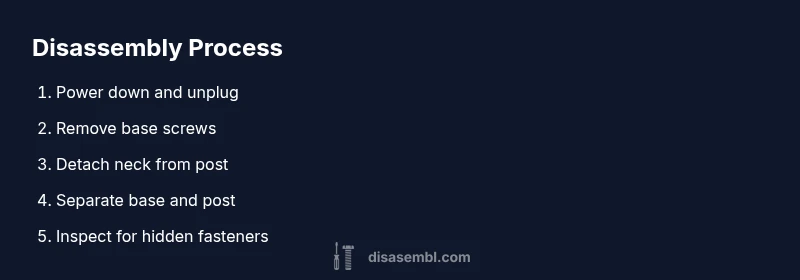
According to Disasembl, you can safely disassemble an Acer monitor stand by unplugging the monitor, removing the base screws, and detaching the neck from the post. Use the right screwdriver to remove visible fasteners, check for hidden screws, then separate the base from the neck and post. Label screws and keep components organized for easy reassembly.
Safety First: Prep and Precautions
Before you touch any hardware, power down the monitor and unplug all cables. Wear eye protection if you expect springs or spring-loaded fasteners, and work on a clean, flat surface with good lighting. Keep a magnetic tray handy to hold screws and small parts. This preparation minimizes the risk of damage to your monitor and simplifies later steps. Disasembl emphasizes safety as the foundation of any disassembly project, especially when handling electronics and furniture components. Here we outline the reasons for prep work and how it reduces the chance of misplacing fasteners or bending delicate pieces.
Understanding Acer Monitor Stand Components
Most Acer monitor stands consist of a base, a neck or post, and a mounting interface that connects to the monitor. Some models use a set of hidden screws or clips along the neck junction. By identifying each component—base, post, neck, and fasteners—you can plan the disassembly sequence with less risk of damaging critical parts. Disasembl’s structured approach to component identification helps DIYers map the task into clearly defined sub-steps, reducing the chance of errors during the process.
Tools and Materials You Might Need
Before diving in, gather the essential tools: a Phillips head screwdriver, a small flat-head screwdriver for prying, and possibly a hex key set if your model uses hex screws. A non-marring tool or nylon pry tool helps separate parts without scratching plastics. Have a soft mat or cloth to place components on, and a permanent marker or label tape to mark screw locations. This section aligns with Disasembl’s emphasis on having the right tools from the start to maintain control and avoid damage.
How Disassembly Typically Progresses (High-Level Overview)
Acer monitor stands vary by model, but a typical process follows a predictable pattern: unplug, remove the bottom base screws, detach the neck from the post, release any clips, and separate the base for storage or disposal. By understanding this general flow, you can anticipate where to look for screws and clips, reducing trial-and-error time. Disasembl recommends taking photos at key junctures so you can reassemble later with confidence.
Troubleshooting Common Issues During Disassembly
If you encounter stubborn fasteners, verify you’re using the correct screwdriver size and driving angle. If a screw resists removal, avoid forcing it; stop and reassess to avoid stripping. For plastic clips, gently pry along the seam rather than forcing parts apart. If parts refuse to separate, re-check accessory cables and ensure there are no hidden screws beneath stickers or labels. This section offers practical tips to overcome typical roadblocks without damaging components.
Reassembly Principles and Testing After Disassembly
Successful reassembly mirrors the disassembly steps in reverse. Start with the base attaching to the post, then reconnect the neck, and finally reattach any clips or covers. Use the original screws where possible and avoid over-tightening. After reassembly, reconnect the monitor and test tilt, height adjustment, and stability. If anything wobbles or clicks, re-check the fasteners and alignment. Disasembl stresses methodical testing to confirm safety and function.
Maintenance and Long-Term Care for Disassembled Stands
To extend the life of your Acer monitor stand, store parts in labeled containers, protect the neck from bending, and keep the base free of dust. Regular checkups, such as ensuring screws remain snug and the post locks securely, can prevent misalignment during reuse. Consider documenting disassembly steps for future maintenance or storage.
Safety and Environmental Considerations
Avoid leaving small parts loose on the work surface; dispose of damaged hardware properly. If you’re unsure about a part’s integrity, replacement parts from the manufacturer or reputable retailers are preferable to temporary fixes. Always handle plastic components gently to prevent cracking, and recycle metal screws where possible. This final safety note reinforces responsible handling during disassembly.
Quick Visual Checks to Ensure Proper Fit
After you finish reassembly, verify that the stand seats cleanly into the monitor’s mounting interface and that the base is flat and stable on a desk. Check for any residual gaps or misaligned seams. A final wobble test helps confirm that tightening was even and that no screws have backed out. These checks save you from surprises after you’ve powered the setup back on.
Summary of Key Points for Acer Monitor Stands
This section consolidates practical tips and guardrails. Ensure you power down first, identify all fasteners, label parts, use correct tools, and test thoroughly after reassembly. Maintaining organization throughout the process reduces risk and streamlines future maintenance.
Tools & Materials
- Phillips head screwdriver #2(For most Acer stand screws)
- Flat-head screwdriver(Prying tool for clips)
- Hex key set(Only if your model uses hex screws)
- Nylon pry tool(Prevents scratches on plastic)
- Magnetic parts tray(Keeps small screws organized)
- Soft mat or cloth(Protects surfaces and parts)
- Label tape and marker(Label screw locations during disassembly)
Steps
Estimated time: Estimated total time: 25-40 minutes
- 1
Power down and unplug
Turn off the computer and monitor; unplug all cables from the monitor and its stand. This reduces the risk of electrical shock and protects internal components.
Tip: Always begin with power removed; this saves you from accidental short-circuits. - 2
Position the stand for access
Place the monitor on a soft, stable surface so you can access the base screws and neck junction without bending delicate cables.
Tip: Use a non-marring mat to avoid slipping. - 3
Remove base screws
Use the Phillips head screwdriver to remove the screws securing the base plate. Keep screws in a labeled tray.
Tip: Note screw length and thread type if different across fasteners. - 4
Detach the neck from the post
Carefully separate the neck from the post by loosening any visible clips or screws.
Tip: If a clip resists, inspect for additional hidden fasteners. - 5
Release mounting interface/clip
Gently release any mounting clips that connect the stand to the monitor plate.
Tip: Work slowly to avoid stressing plastic JST connections. - 6
Separate the base and post
With all fasteners removed, lift the base away from the post and place it aside.
Tip: Keep track of which piece came from where. - 7
Inspect for hidden fasteners
Check under stickers or labels for any concealed screws.
Tip: Peel stickers with care to reveal screws without tearing labels. - 8
Store and label parts
Place screws and small parts in labeled containers for easy reassembly.
Tip: Take photos at key steps for reference.
Got Questions?
Is it safe to disassemble an Acer monitor stand at home?
Yes, provided you power down, unplug, and use proper tools. Work on a clean, stable surface.
Yes—make sure the monitor is unplugged and you have the right tools.
What tools do I actually need for this task?
A Phillips head screwdriver, a nylon pry tool, and optionally a hex key set if your model uses hex screws.
You need a Phillips screwdriver and a pry tool, plus a hex key if required.
How do I locate hidden fasteners?
Check under stickers, foam pads, and near the neck junction; use a flashlight and compare to the model’s photos.
Look under labels and stickers for screws.
Can I reuse the same screws after disassembly?
Yes, reusing screws is fine if they are not stripped. Keep track of length and thread type.
Yes, as long as the screws aren’t damaged, you can reuse them.
What should I do if the stand won’t separate?
Re-check for hidden fasteners, verify tool fit, and ensure cables aren’t still attached; avoid forcing parts.
Double-check for hidden screws and cables; don’t force it.
Watch Video
What to Remember
- Power down and unplug before starting
- Identify all fasteners and keep organized
- Label parts to simplify reassembly
- Use the correct tools to avoid damage
- Test stability after reassembly