Steps on How to Disassemble a Personal Computer Safely
Learn safe, step-by-step PC disassembly with a complete checklist, tools list, and practical tips from Disasembl. Prepare, disconnect power, document connections, remove components, and organize parts for easy reassembly.


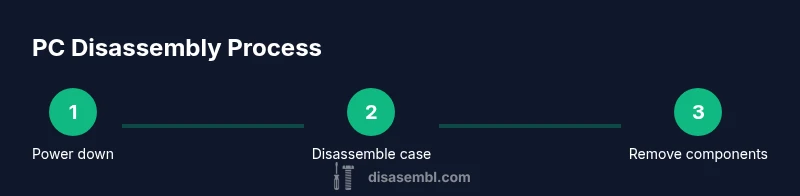
By following these steps, you will safely disassemble a personal computer for upgrades or repair. The process starts with safety: unplug the power, discharge static, and gather the right tools. Then remove the side panel, document cables, and systematically detach components in a logical order to protect delicate parts and preserve wiring. This guide provides a proven, step-by-step approach.
Safety and planning
According to Disasembl, safety is the foundation of any disassembly project. Before you touch a single screw, set up a clean, static-free workspace and establish a plan that mirrors your long-term goal—whether you are upgrading, repairing, or repurposing the machine. Begin by turning off and unplugging the computer, and if you can, unplug the power strip as well to prevent back‑feed. If you are working on a laptop or an all-in-one, be mindful of built-in batteries and warranty considerations.
Ground yourself to the chassis by touching a grounded metal surface, or better, wear an anti-static wrist strap connected to the PSU or a metal case; this minimizes risk of ESD damage to delicate components such as the motherboard and RAM. Keep a dedicated tray for screws and small fasteners, and use clearly labeled bags or cups to separate components that will be reinstalled later. Having a photo log of cable connections at the start is a simple, effective way to avoid mix-ups during reassembly. Disasembl recommends documenting the general layout of the interior and creating a step-by-step plan that aligns with the components you intend to remove first.
Tools and workspace setup
A successful PC disassembly relies on the right tools and a safe environment. Gather a Phillips head screwdriver set (PH0 and PH1), a Torx set if your model uses Torx screws, a magnetic parts tray, labeled resealable bags, an anti-static wrist strap, and a non-conductive mat or soft cloth for your work surface. If you don’t have an anti-static wrist strap, ground yourself frequently and avoid working on carpet. Organize your screws by size and origin; keep GPU screws separate from motherboard standoff screws and store them in labeled containers. A lint-free brush helps remove dust from connectors before removal. For laptops, include precision screwdrivers and a spudger to reach recessed fasteners without bending pins. Finally, plan your notes and photos to reflect the path of cables and components so reassembly is straightforward.
Documentation and component labeling
Accurate documentation saves time and reduces errors during reassembly. Start with wide interior photos, then zoom in on critical connections. Label every connector with masking tape and a marker, noting the header type and orientation. When you detach cables, keep them with their component or route them along a prepared guideline to avoid tangling. For RAM and PCIe cards, note slot positions and orientation; most modules and cards have a keyed notch or unique connector shape. Create a simple removal order: expansion cards, storage, memory, cooling, motherboard. Store items in labeled bags or trays to prevent mix-ups. Maintain a log with dates, model numbers, and brief descriptions to guide future upgrades or maintenance.
Systematic disassembly order
A logical, repeatable order reduces risk and speeds up reassembly. Begin with exterior elements: remove the side panel, then disconnect case fans and any front-panel cables that might snag during removal. Next, take out non-essential components: SSDs/HDDs and optical drives. Remove PCIe expansion cards by unscrewing the bracket and gently pulling the card by its edges. If a GPU is installed, detach it and place it in an anti-static bag. Then unpack power connections: unplug the 24-pin ATX, 8-pin CPU power, and any PCIe power leads. Disconnect SATA data and power cables from drives. With components detached, you can access the motherboard. If you plan to remove the motherboard, do so by unmounting screws and lifting evenly. This order helps confirm every connection before removal and minimizes risk to delicate traces.
Reassembly considerations and cleanup
Disassembly often serves as a prelude to upgrade or troubleshooting, so plan for careful reassembly. Keep screws grouped by component and document the exact locations you removed them from. When reassembling, begin with the motherboard back in place, reattach power connectors in the order you recorded, and connect data cables last to minimize mistakes. If you plan to upgrade, photograph BIOS settings or onboard connections that matter. After components are removed, clean the interior with a soft brush and ensure all fans spin freely. Reassemble in the reverse order of removal, ensuring connectors snap firmly and screws are tightened evenly without overtightening. Store spare parts in labeled bags and perform a cautious power-on test with minimal components first to verify basic function before full operation.
Troubleshooting and post-disassembly checks
If the PC doesn’t power on after reassembly, recheck all power connections and ensure motherboard standoff alignment matches the case. A missing or loose RAM module is a common POST blocker; reseat memory and try again, starting with recommended memory slots in the motherboard manual. If a component refuses to come free, avoid forcing it; recheck screws, clips, and orientation of connectors. Static-damage symptoms may appear as intermittent boot failures or odd POST codes; reset BIOS/UEFI settings and inspect connectors for damage. For laptops or all-in-ones, battery and cable connections can complicate disassembly; consult the manufacturer’s service manual before forcing any part. Finally, keep tools organized in labeled bags to prepare for future maintenance.
Tools & Materials
- Anti-static wrist strap(Grounds you to a metal chassis to prevent static discharge)
- Non-conductive work mat(Keeps parts from shorting on a conductive surface)
- Phillips screwdriver set (PH0, PH1)(Choose sizes based on case screws)
- Torx screwdriver set(Some models use Torx screws (T6-T8 common))
- Magnetic parts tray(Keeps screws and small parts organized)
- Label bags or small containers(Label by component and slot)
- Lint-free brush(Dust out connectors and fans)
- Plastic pry tools or spudger(Gently disconnect plastic clips and ribbon cables)
Steps
Estimated time: 45-60 minutes
- 1
Power down and unplug
Power off the PC completely, then unplug the power cord from the wall and from the back of the case. If possible, switch off the power strip and remove it from the surge-protected zone to eliminate any lingering power. This prevents electric shock and protects components during handling.
Tip: Double-check that no fans are spinning before touching internal parts. - 2
Ground yourself and prep workspace
Ground yourself by touching a metal surface or wear an anti-static wrist strap connected to a grounded point. Work on a non-static, clean surface, and keep a clear area free of liquids. This reduces the risk of static damage to the motherboard, RAM, and CPU cooler.
Tip: Take a quick photo of the interior before starting to document cable routing. - 3
Remove the side panel
Remove the screws from the side panel and slide the panel off toward the back. Place the panel aside on a soft surface to avoid bending edges or scratching components. If cables are clipped to the panel, disconnect them gently.
Tip: Store screws in labeled containers by panel side. - 4
Label and disconnect major cables
Note where every motherboard connector and power cable attaches, then carefully unplug them one by one. Keep track of their original positions and orientations to simplify reassembly. If a ribbon cable or connector seems tight, stop and recheck alignment before force is applied.
Tip: Use masking tape to mark connectors with a short note about their destination. - 5
Remove expansion cards
Unscrew the card retention bracket and gently pull each card from its PCIe slot by the edges, not the connectors. Place cards into an anti-static bag or their original packaging. Note any specific seating arrangement and slot color coding for ease of reinstallation.
Tip: Hold cards by the edges to avoid touching delicate circuitry. - 6
Detach storage drives
Disconnect SATA data and power cables from SSDs/HDDs, then remove the drive screws and slide drives out of their bays. For M.2 drives, release the screw and slide the drive out of its socket. Place drives in labeled bags.
Tip: Avoid bending the drive connectors and handle drives with care. - 7
Remove memory and cooling assembly
Gently release RAM from its slots by pressing the holding clips outward and lift modules straight up. Loosen the CPU cooler screws evenly and lift the cooler away, taking care not to disturb the CPU socket. If you plan to reuse thermal paste, keep the cooler and heatsink together and label their orientation.
Tip: If thermal paste is present, plan for reapplication during reassembly. - 8
Remove the motherboard and power components
Unplug remaining connectors, then remove motherboard mounting screws and carefully lift the board from the chassis. If you are removing the power supply, disconnect it last and remove it from the case. Place the motherboard and PSU in anti-static bags for storage.
Tip: Keep track of stand-offs and screws to avoid misplacement. - 9
Plan for reassembly and cleanup
Survey the interior and prepare for reassembly by ensuring all parts are accounted for and labeled. Clean dust with a brush and ensure all fans spin freely when tested. Return screws and components to labeled bags to simplify future upgrades.
Tip: Document your final interior layout as a reference for future work.
Got Questions?
Is it necessary to unplug the computer before disassembly?
Yes. Always power down and unplug the computer to avoid electric shock and accidental powering on during handling. If you're working with a laptop, disconnect the battery if available and follow manufacturer guidelines.
Always unplug and power down before starting to disassemble to stay safe and prevent damage.
What tools do I need for PC disassembly?
At minimum, have a Phillips screwdriver set, a magnetized tray, labeled bags, and an anti-static strap or grounding method. A Torx set and spudger can help with screw types and ribbon cables depending on your model.
A basic screwdriver set, bags, and anti-static gear will cover most PC disassembly tasks.
How do I prevent static damage during disassembly?
Ground yourself frequently, use an anti-static wrist strap, and work on a non-static surface. Avoid touching circuit traces and handle components by their edges.
Ground yourself and handle parts by the edges to avoid static harm.
How should I store screws and components?
Place screws in labeled containers or bags by component and keep them in a dedicated tray. Take photos of each assembly stage to aid reassembly.
Label and group screws to match their original locations, and refer to photos when reassembling.
Can I safely disassemble a laptop or all-in-one?
Laptop disassembly is more complex due to compact layouts and batteries. Consult the manufacturer’s service manual and use precision tools to avoid damaging fragile ribbons and connectors.
Laptops require extra care; check the manual and have precise tools ready.
What if something won’t come loose?
Stop and recheck for hidden screws, clips, or cables. Forcing parts can snap or warp components; take a calm, methodical approach and document what you’ve removed.
If it won’t budge, pause, recheck for hidden fasteners, and avoid forcing it.
Watch Video
What to Remember
- Power down and unplug before touching internals.
- Label and document connections to simplify reassembly.
- Store screws by component in labeled containers.
- Follow a logical removal order to minimize damage.
- Test boot with minimal hardware before full operation.