How a Computer Is Assembled: Step-by-Step Guide
Learn how a computer is assembled from motherboard to power supply with practical, step-by-step guidance for DIY enthusiasts. Plan, tool up, and test for a reliable desktop PC.


This guide shows you how a computer is assembled from components like motherboard, CPU, memory, storage, power, and case. It covers planning, essential tools, the build sequence, and testing. You’ll learn how to choose parts, prepare your workspace, and complete a safe, upgradable desktop PC build. This quick answer helps you verify you have the right components and a clean workspace.
How a computer is assembled: an educational overview
According to Disasembl, building a computer is a deliberate sequence of decisions that begins with defining use-case, budget, and space. A modern desktop typically includes a case, motherboard, central processing unit (CPU), memory (RAM), storage (SSD/HDD), graphics card (GPU) if not using integrated graphics, power supply (PSU), cooling (air or liquid), and optional peripherals. The assembly is not merely about stacking parts; it's about compatibility, airflow, and future upgradability. This section outlines the big-picture flow and why each subsystem matters. You'll learn how the pieces interact: the motherboard provides connectivity between CPU, memory, storage, and I/O; the PSU supplies power; the cooling system keeps temperatures in check; and the case provides chassis management and cable routing.
In a well-planned build, you start with a clear component list and a workspace that minimizes static risk. You also consider upgrade paths: choosing a motherboard with extra PCIe slots, ample RAM capacity, and a power supply with headroom. The Disasembl team emphasizes measuring the space, confirming clearance for graphics cards, and predicting potential future upgrades such as higher wattage GPUs or additional storage. As you plan, you’ll weigh trade-offs like size (ATX vs micro-ATX), peripheral connectivity, and cooling efficiency. The goal is a balanced rig that performs today and scales for tomorrow. The rest of this guide will walk you through selecting parts, preparing your workspace, and methodically assembling a PC that is safe, reliable, and easy to troubleshoot.
Core components and subsystem roles
A computer is powered by several interdependent subsystems. The motherboard acts as the central hub, hosting the CPU socket, RAM slots, PCIe slots, and various headers for power, data, and peripherals. The CPU handles instructions and communicates with the RAM over the memory controller; modern processors use integrated memory controllers that rely on precise timings and voltage. RAM provides fast, temporary storage that the CPU can access quickly. Storage such as SATA SSDs or NVMe drives stores the operating system, applications, and data. The GPU handles rendering for graphics-intensive tasks, while the PSU converts AC power to the DC rails that components require. Cooling, either fans or liquid cooling, maintains safe operating temperatures to prevent throttling or damage. The case organizes components and promotes airflow. Compatibility is crucial: motherboard size (ATX, micro-ATX), CPU socket type, RAM type (DDR4/DDR5), and PCIe version all influence part selection.
Planning the build space and safety
A clean, well-lit workspace reduces mistakes and makes components easier to handle. Anti-static precautions, such as grounding yourself or using an anti-static mat, protect sensitive electronics from electrostatic discharge. Gather all parts and tools before you start, label cables and drives, and reserve a container for small screws. Consider the thermal and acoustic profile of your build: good airflow with intake and exhaust fans reduces heat buildup. Decide on component order and keep a simple shopping list to avoid reordering parts. The goal is to assemble a PC with ease, not hurry; taking time during planning saves hours during the actual build.
Pre-assembly testing and compatibility checks
Before you mount any parts, verify that all components are compatible. Check motherboard socket type, RAM speed, GPU length, PSU wattage, and storage interfaces. Use the motherboard’s documentation to confirm required mounting points and screw sizes. If you’re reusing an existing case or PSU, confirm clearance and connector compatibility. Running a quick capacitive test with a spare power supply can help identify obvious faults. This stage reduces surprises later and helps you plan the exact sequence of steps for the build.
Post-assembly testing and first boot
With the components installed, power up for the first boot. Enter the BIOS/UEFI to verify detected hardware, monitor temperatures, and adjust boot order. Ensure all fans run smoothly and that no POST codes indicate a missing or misconnected component. Install the operating system or bootable drive and complete driver updates. Running a basic stress test for a short period can help confirm stability, and monitoring temperatures under load will reveal cooling adequacy. If you see issues, retrace connections and reseat components as needed.
Maintenance, upgrades, and troubleshooting
A PC build is rarely static; plan for upgrades by choosing a motherboard with extra PCIe slots, sufficient RAM capacity, and a PSU with headroom. Regular maintenance includes dusting, checking cable management, and updating firmware. When upgrading, verify compatibility with the rest of the system and budget for potential cooling upgrades if adding a high-widelity GPU. Common issues include unstable boot, failing to post, or high temperatures; these often stem from loose connections, insufficient power, or insufficient cooling. Systematically reseat components and test one change at a time to isolate the cause.
Common mistakes and how to avoid them
Rushing through assembly leads to misaligned connectors or damaged components. Avoid over-tightening screws and forcing parts into slots. Keep anti-static discipline and use labeled containers for fasteners. Double-check that the motherboard is correctly aligned with I/O shield and case standoffs. Finally, verify that power connectors are fully seated and that cables do not obstruct fans or impede airflow.
Tools & Materials
- anti-static wrist strap(Ground yourself while handling components)
- magnetic Phillips screwdriver (PH2)(Essential for most screws)
- spare screws and standoffs(Label and organize by size)
- thermal paste (if cooler requires it)(Some coolers arrive with paste applied or included)
- thermal paste spreader or clean microfiber cloth(For even paste application)
- anti-static mat or clean workspace(Reduces static risk)
- cable ties or Velcro straps(For tidy cable management)
- external USB drive or OS installer(For OS installation)
- flashlight or headlamp(Helpful in tight spaces)
- thermal monitoring software(After build: check temperatures)
Steps
Estimated time: 90-120 minutes
- 1
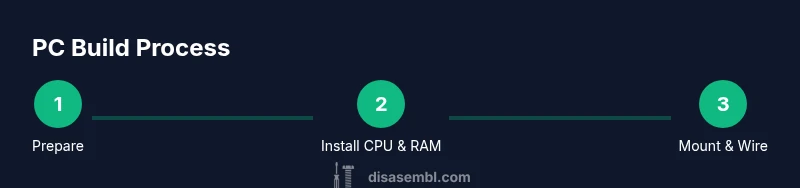
Prepare workspace and gather parts
Clear a desk, wear the anti-static strap, and lay out all components in labeled groups. Verify each part against your bill of materials and ensure you have a stable, clean surface.
Tip: Organize screws by location and size to avoid mix-ups. - 2
Install CPU into motherboard
Open the socket, align the notches based on the motherboard markings, and seat the CPU gently without forcing. Close the socket latch to secure the CPU.
Tip: Double-check the orientation before seating to avoid bent pins. - 3
Install RAM modules
Open RAM slots, align the modules with the notches, and press straight down until the latches lock. Confirm two evenly seated modules for dual-channel operation when using four sticks.
Tip: Install in the correct slots for dual-channel on your motherboard. - 4
Attach CPU cooler
If the cooler uses a preload bracket, secure it per the manufacturer’s instructions. Apply thermal paste if required and connect fan power to the CPU fan header.
Tip: Do not overtighten cooler mounting screws. - 5
Mount the motherboard in the case
Place the I/O shield, align rear ports, and fasten standoffs in the case. Mount the motherboard carefully to avoid bending the board.
Tip: Use a non-magnetic screwdriver to avoid shorting components. - 6
Install PSU and power cables
Mount the power supply, route main 24-pin and CPU power cables through the case, and avoid blocking airflow. Ground the chassis as required by your case design.
Tip: Keep power cables away from fans and moving parts. - 7
Install storage drives
Secure SSDs/HDDs in their mounts or trays and connect SATA or NVMe cables as appropriate. Ensure drives are accessible for future upgrades.
Tip: Label drive cables for easier future maintenance. - 8
Install GPU and other add-ins
Insert the graphics card into the correct PCIe slot and fasten the bracket to the case. Connect PCIe power if required by your GPU.
Tip: Avoid using flexible riser cables unless the motherboard supports them. - 9
Connect case fans and front-panel headers
Attach all fan connectors, USB headers, and audio depending on your case and motherboard. Verify correct orientation for airflow and power.
Tip: Take a photo of header labels before disconnecting anything. - 10
First boot and BIOS setup
Power on and enter BIOS to verify hardware detection, set boot order, and enable XMP profiles if RAM supports them. Save settings and reboot to install the OS.
Tip: If POST fails, reseat components one by one to locate the issue.
Got Questions?
What is the first step in assembling a computer?
The first step is planning and workspace setup, then preparing the motherboard to receive the CPU and RAM. This reduces mistakes during the build.
Begin with planning and a clean workspace before you start installing parts.
Do I need to apply thermal paste if my cooler includes a premounted cooler plate?
If your cooler arrives with a pre-applied thermal pad or paste on the cooler plate, you typically do not need additional paste. Check the cooler's instructions for specifics.
Check the cooler package; premounted paste usually means no extra paste is needed.
Can I reuse an old power supply for a new build?
Reusing an old PSU is possible if it has enough wattage, stable rails, and the right connectors for your new build. If unsure, consider a replacement to guarantee reliability.
Make sure the PSU provides sufficient power and clean rails for the new components.
What safety precautions should I take when assembling a PC?
Ground yourself to avoid static, handle components by edges, and avoid touching connectors. Work on a non-conductive surface and keep liquids away from the workspace.
Ground yourself and handle parts by the edges to stay safe.
What should I do if the PC won’t post after first boot?
If there’s no POST, reseat essential components (CPU, RAM, GPU) and verify power connections. Check BIOS beeps or codes and consult the motherboard manual.
Re-seat the core components and review BIOS indicators for clues.
How can I improve airflow in a compact build?
Plan for balanced intake and exhaust; consider additional fans or a different case layout to reduce heat buildup. Cable routing should not block airflow.
Balance fans and keep cables out of the airflow path.
Watch Video
What to Remember
- Plan before you assemble to prevent compatibility issues.
- Carefully seat CPU, RAM, and cooler to avoid damage.
- Manage cables for airflow and future upgrades.
- Test boot and monitor temperatures to ensure stability.
- Document and label components for easier maintenance.