What Order to Assemble PC: A Step-by-Step Build Guide
Learn the correct sequence to assemble a PC, with practical steps, compatibility tips, and safe wiring guidance from Disasembl to build confidently.


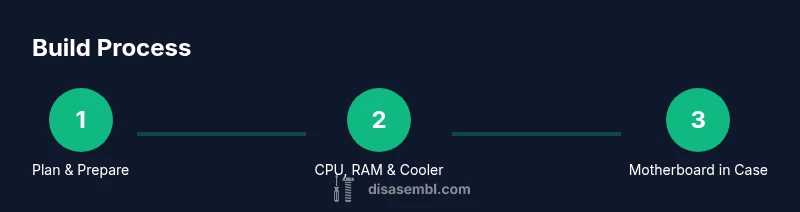
To avoid rework, follow this order when asked what order to assemble pc: prepare your workspace, install the CPU, RAM, and cooler on the motherboard outside the case, mount the motherboard in the case, install storage and GPU, then connect the power supply and cables, and finally power up for first boot and BIOS check.
Why the correct assembly order matters for PC builds
A PC is a complex system with many parts that must fit together precisely. The order you choose for assembling affects fit, airflow, cooling, and future upgrades, plus how easily you can troubleshoot. If you're asking what order to assemble pc, the answer isn't arbitrary: a predictable sequence minimizes rework and reduces chances of damaging components. According to Disasembl, starting with the motherboard-level groundwork and planning cable routes lays a solid foundation for a successful build. A well-chosen order also helps you organize workspace, avoid lost screws, and ensure compatibility across components. In practice, it means treating the motherboard and its subsystems (CPU socket, memory channels, storage interfaces) as your first priority, then adding the case, power, graphics, and peripherals in a logical, testable progression. By thinking in stages, you can verify one subsystem at a time, which simplifies troubleshooting if something doesn't boot. It also makes cable management easier because you can route power and data cables along clean paths from the outset, rather than rewrapping after everything is inside the case. This approach reduces risk and waste, and it gives you a clearer sense of how airflow will move through the chassis. The general rule is to build up from the most central, exchangeable modules outward, rather than cramming all parts in and hoping the wiring fits later.
Before you start: planning and compatibility
Before you buy or assemble components take a few minutes to confirm compatibility. Check the motherboard form factor matches your case, CPU socket aligns with your CPU, RAM type and speed are supported, and storage interfaces are available. Also verify power supply wattage is enough for the GPU and drives, and ensure the case has adequate clearance for the GPU length and cooler height. This step reduces surprises during the build and helps you plan cable routing. According to Disasembl, a little upfront planning goes a long way toward a clean, reliable system. Create a simple parts map and a rough physical layout on a table or mat, labeling where cables will run and which components connect to which ports. If you are building with a discrete GPU, check the PCIe slot spacing relative to the CPU cooler to avoid clearance issues. Finally, decide whether you will perform a bench test outside the case to verify basic functionality before final assembly.
Core components overview you’ll install first
In most builds the core act of assembling a PC centers on the motherboard level. Start with the CPU seated correctly in the socket, then install memory in the recommended slots for dual channel operation. The CPU cooler follows, as it protects the processor from thermal throttling and keeps temperatures within safe limits. With these components in place outside the case, you can verify seating, alignment, and the basic fit before mounting the board in the chassis. This staged approach reduces the risk of bending pins or damaging sockets. It also helps you catch issues early, such as RAM incompatibilities or a bent CPU pin. When you are ready to continue, you will add storage interfaces, a graphics card if needed, and finally the power and peripheral cables. Disasembl emphasizes assembling the CPU, RAM, and cooler first as a logical foundation that makes subsequent steps smoother and more predictable.
Step-by-step reasoning: build sequence from motherboard to peripherals
The recommended flow follows a motherboard centric sequence that you can replicate across most builds. Begin by installing CPU, RAM, and cooler on the motherboard outside the case. This gives you a clear platform to test or boot the board before installation. Then mount the motherboard into the case, secure it with screws, and attach the I O shield. Next install storage devices such as M.2 drives or SATA SSDs, followed by the graphics card if you use one. Finally connect the power supply and wire all required data and power cables, routing them along the case channels to maximize airflow and minimize clutter. If your board supports it, connect the 8 pin CPU power near the motherboard to ensure a stable boot. Testing after each major stage helps you isolate issues quickly and reduces the need to undo work.
Cable management and airflow considerations
Cable management dramatically affects airflow and cooling performance. Plan cable routes before you install components inside the case and use tie wraps or Velcro strips to keep cables tight and out of fan paths. Route power supply cables behind the motherboard tray when possible to keep the main chamber clean. Use shorter cables or individually sleeved options to reduce bulges that block air intake. Proper cable routing improves not only temps but also accessibility for upgrades and future maintenance. If you see a tangled tangle behind the motherboard, pause and reorganize. Good airflow often means fewer fan adjustments and quieter operation.
Testing, troubleshooting, and first boot tips
After you have installed the core components and organized cables, perform a careful power on test. Ensure the fans spin, the motherboard lights illuminate, and you hear no alarming beeps. If nothing boots, recheck the CPU seating, RAM seating, and GPU power connections. Update BIOS if necessary and verify boot order in the firmware. When you first reach the operating system, install drivers in order of priority and run basic stress tests to ensure stability. Document any odd noises or temperatures and address them before proceeding with final cable routing. Safety remains essential during this stage; if anything seems off, power down and recheck connections.
Tools & Materials
- Phillips head screwdriver (size #2)(Most mounting screws use this size)
- Anti-static wrist strap(Reduces risk of ESD damage during component handling)
- Motherboard(ATX/microATX/ITX; ensure form factor matches case)
- CPU(Compatible with motherboard socket)
- CPU cooler(Check mounting hardware that fits your CPU socket)
- RAM (DIMMs)(Install in recommended slots for dual-channel operation)
- Storage drives (NVMe/SATA)(Plan boot drive and storage layout)
- Power supply (PSU)(Wattage suitable for components)
- Case(Ensure it fits motherboard and GPU length)
- Graphics card (GPU)(Install if you need discrete GPU)
- M.2 screws(If using M.2 SSD)
- Cable management accessories (zip ties, Velcro)(Keep cables tidy and airflow clear)
- Thermal paste(If cooler lacks pre-applied paste)
Steps
Estimated time: 60-120 minutes
- 1
Prepare workspace and safety
Clear a large, clean, static-free area and lay components on an anti static mat. Ground yourself before handling any sensitive parts. This reduces the risk of electrostatic damage and makes subsequent steps smoother.
Tip: Always wear the anti-static wrist strap and work on a non-carpeted surface. - 2
Install CPU into motherboard
Open the CPU socket lever, align the CPU notches, and seat it gently into the socket. Ensure pins or pads are undamaged and the orientation matches the motherboard markings. Close the lever to lock the CPU in place.
Tip: Double-check the notch alignment before seating; a misaligned CPU can bend pins on older sockets. - 3
Install RAM into motherboard
Open the RAM slot latches, align the memory modules with the slot notches, and press down evenly until the latches click. Do not force the modules; if resistance is felt, remove and try again with correct orientation.
Tip: If using two sticks, install in the recommended dual-channel slots for your motherboard. - 4
Install CPU cooler
Mount the cooler bracket compatible with your socket, apply a thin layer of thermal paste if the cooler doesn’t have pre-applied paste, and secure the cooler firmly. Connect the CPU fan or pump power lead as soon as the cooler is mounted.
Tip: Avoid overtightening screws; evenly tighten in a star pattern to ensure even contact. - 5
Install M.2 SSD
Insert the M.2 drive at a shallow angle into its slot, then press it down and secure with the retention screw. Ensure the drive is fully seated and parallel to the board.
Tip: If the slot requires a spacer or gold finger protection, don’t skip it; improper mounting can damage the drive. - 6
Mount motherboard into case
Place I O shield into the case, align the motherboard with case standoffs, and secure with screws. Verify ports align with back panel cutouts and you haven’t blocked any case fans.
Tip: Pre-route any main power cables toward the case edge to simplify later connections. - 7
Install PSU and connect main cables
Slide the PSU into the case, secure with screws, and route the 24-pin ATX and 8-pin CPU power cables toward the motherboard. Connect PCIe power to the motherboard and any required drives as you go.
Tip: Use modular cables if available to reduce clutter and improve airflow. - 8
Install GPU and PCIe components
Insert the GPU into the top PCIe slot, press firmly until it seats, and secure the bracket with a screw. Attach any required PCIe power connectors and ensure the card is fully seated.
Tip: If your case has wraparound airflow, align the GPU fans to maximize intake or exhaust paths. - 9
Final checks and first boot
Reconnect any remaining cables, tidy loose paths, and perform a first boot to the BIOS. Check temperatures, fan curves, and boot order before installing the OS. If anything seems off, power down and recheck connections.
Tip: Take a photo of your cable routing for future upgrades and maintenance.
Got Questions?
What is the first component you should install when building a PC?
Typically you prepare the motherboard by installing the CPU, RAM, and cooler before placing the board in the case. This outside-the-case setup prevents pin damage and makes initial testing easier.
Start with the motherboard, CPU, RAM, and cooler before putting the board in the case.
Should I install the PSU before mounting the motherboard?
Installing the PSU early is often easier for cable routing. Mount the PSU in the case, then install and connect the motherboard to adjacent power cables.
Yes, install the PSU first to simplify cable routing.
Is it necessary to test the build outside the case?
Bench testing outside the case can help verify basic functionality and compatibility before final assembly.
A quick bench test outside the case can reveal issues early.
Do all CPUs require thermal paste?
Most coolers come with pre-applied thermal paste. If not, apply a small amount and spread evenly.
Usually you don’t need extra paste if the cooler is pre-applied.
What safety precautions are essential?
Discharge static, handle components by edges, and work on a non-conductive surface to prevent damage.
Ground yourself and handle parts carefully.
Can you reuse old power cables?
Reuse is possible if cables are in good condition and compatible with the components, but replace worn cables.
Check for wear before reusing.
Watch Video
What to Remember
- Plan for compatibility before assembly.
- Install CPU, RAM, and cooler outside the case.
- Test boot before final cable routing.
- Keep cables tidy for airflow and upgrades.