How to Disassemble an HP Monitor Stand
Learn to safely disassemble an HP monitor stand with practical, step-by-step instructions, essential tools, safety tips, and guidance for reassembly and mounting.


You can disassemble an HP monitor stand to free up space or switch to a VESA mount. Start by unplugging the monitor, laying it face down on a soft surface, and locating the base screws. Remove the base, loosen the neck/arm connection, and detach the stand from the monitor. If a VESA plate is present, remove its mounting screws.
Why Disassemble an HP Monitor Stand
Disassembling an HP monitor stand is a practical way to reclaim desk space, reduce the monitor’s footprint, or prepare the panel for a VESA wall or arm mount. According to Disasembl, many users start with a simple goal—to free up desktop real estate—before diving into the mechanics of removal. The underlying principle is to identify the attachment method first: base screws, release levers, or a hidden locking mechanism. By understanding your stand’s design, you can tailor the approach and minimize risk to the display. In most cases, disassembly is reversible, so keeping careful track of screws and components helps ensure a smooth reassembly should you revert to the original stand later. Always approach the task with organization and safety in mind, as abrupt force or missing fasteners can damage the monitor frame or its mounting surface.
Tools and Materials You’ll Need
- Screwdriver set (Phillips #1 or #2, plus a small flathead for pry tasks)
- Hex/Allen keys (2mm–4mm range) and a Torx set if your model uses Torx screws
- Plastic pry tool or spudger (to separate clips without scratching)
- Microfiber cloth (for protecting the screen and base surfaces)
- Small magnetic dish or parts tray (to keep screws organized)
- Anti-static wrist strap (optional but recommended)
- Pen and paper (for note-taking about screw locations)
Optional: flashlight for hard-to-see screws, lubricant for stubborn fasteners, and a spare camera to document the process for future reference.
Overview of HP Stand Variants and Attachment Methods
HP monitors come with several stand designs, and the method to separate the stand depends on the model family. Some stands are attached with visible screws at the base, others employ a latch or snap-fit joint that requires gentle prying or a release lever. A few HP monitors include a VESA mounting plate integrated into the stand assembly, meaning you’ll need to remove mounting screws to separate the display from the stand. Recognizing whether your stand uses a simple screw-base connection, a locking clip, or a detachable VESA plate will save time and reduce the risk of damage. Disassembling in the right order—base, neck, then mounting plate—helps ensure that each component comes away cleanly without bending or twisting the metal frame.
Preparing Your Workspace and Safety Checks
Set up a clean, dry work surface with ample space to spread out screws and components. Power down the monitor completely and unplug any cables before starting. Place a soft cloth or foam mat on the desk to cushion the screen. Work in a well-lit area and avoid applying force to the display panel itself; stay focused on the stand connections. If you encounter resistance, pause and re-check the attachment type before levering. Keeping a photo log of how each piece comes apart can be invaluable when you later reassemble or mount to a different system. Finally, consider using an anti-static strap to prevent electrostatic discharge from damaging internal components during disassembly.
Step-by-Step Disassembly Overview
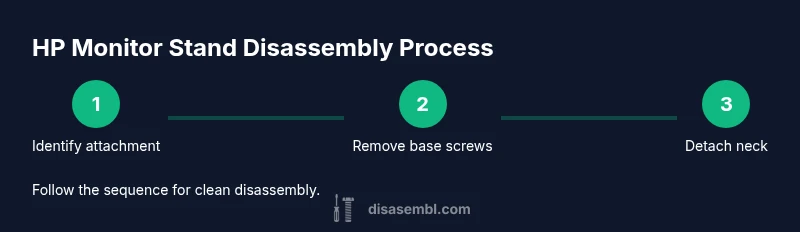
This section provides a high-level map of the process so you know what to expect before you begin. Start by identifying the attachment points (base screws, neck joint, and any locking mechanisms). Remove the base first, then the neck or arm, followed by the mounting plate if present. If you encounter a snap-fit, release it with gentle prying rather than brute force. For VESA-equipped models, detach the mounting plate by removing the screws nearest the stand interface. Throughout the process, keep track of each fastener’s location and size to ease reassembly.
Detaching the Base and Neck
The base is often held by multiple screws that secure the base to the vertical support. Remove these screws in a star pattern to evenly release tension. After the base is free, check for any hidden clips along the neck joint and release them gently using the plastic pry tool. If the stand uses a tilt or swivel mechanism, identify any adjustment screws or axles that lock the position. Detach the neck from the stand’s central column first, then carefully pull the entire neck away from the monitor’s rear panel. Keep the base and neck components in a labeled container to avoid mix-ups.
Removing a VESA Plate or Mounting Bracket
If your HP monitor is attached to a VESA plate, locate and remove the four mounting screws that secure the plate to the monitor. Use the correct driver size to avoid stripping. Once the plate is free, you can detach the stand from the monitor by unfastening the screws at the interface where the stand meets the display. In some models, the VESA plate may be integrated with the stand and require removing the plate first before extracting the stand, so take your time to inspect the screw pattern and any hidden access holes.
Special Cases: Hinged, Tilt, or Swivel Stands
Hinged, tilt, and swivel stands add complexity because multiple joints may be present. Look for a single central pivot or multiple hinge points that secure with small screws or a pin. When disassembling these stands, support the monitor’s weight with your free hand to prevent panel damage. If a hinge pin is present, gently press it out from the underside using the appropriate punch or pin tool. For tilt mechanisms, identify locking screws that prevent accidental movement during removal. When you finish, re-check all joints for any missing springs or spacers that could affect stability.
Post-Disassembly Care: Storing hardware and cleaning
With all parts removed, wipe the stand interfaces with a dry microfiber cloth to remove dust. Store screws and small hardware in labeled containers, grouped by their original location. Inspect the stand pieces for any signs of wear or minor damage, such as stripped threads or bent tabs, and set aside for replacement if needed. If you plan to reuse the stand, consider applying a small amount of electronics-safe lubricant to moving joints to maintain smooth operation. Finally, document the order of reassembly in a notebook or digital note to streamline future maintenance or upgrades.
Common Issues and Quick Fixes
- Stubborn screws: Apply light penetrating oil and wait a few minutes before attempting again. Use a rubber grip or grip-enhancing bit to prevent slipping.
- Stripped threads: If you encounter stripped screws, stop and replace with longer screws of the same thread pitch, or use a thread repair insert if you have the proper hardware and tools.
- Hidden fasteners: Some designs hide screws under rubber feet or recessed covers. Gently pop these covers to reveal the fasteners without damaging the cover.
Reassembly Tips (For Future Reference)
Reassembly is the reverse of disassembly. Start by mounting the VESA plate if applicable, then reattach the neck, and finally secure the base. Place screws in their original positions and tighten in a crisscross pattern to balance the torque. Before lifting the monitor back, reconnect cables, and test the stand’s stability on a flat surface. Document any model-specific caveats in your notes, so future maintenance remains straightforward.
Final Checks and Ergonomic Considerations
After reassembling, perform a final check to ensure all screws are snug but not over-tightened, and that the stand holds the monitor level and with the desired tilt range. Confirm that the stand does not wobble when nudged lightly. If you plan to mount via a different method, verify compatibility with your mounting arm or wall bracket. This is also a good moment to re-check the monitor’s cable routing to avoid pinching or tension on any cables.
Tools & Materials
- Screwdriver set(Phillips #1 or #2, plus small flathead for prying)
- Hex/Allen keys(2mm–4mm range; Torx if present)
- Plastic pry tool or spudger(To release clips without scratching)
- Microfiber cloth(To protect screen and surfaces)
- Small containers or magnetic tray(Screw organization)
- Anti-static wrist strap(Optional but recommended)
- Notebook or labeling tape(For tracking screw locations)
- Pen or marker(Label parts during disassembly)
Steps
Estimated time: 25-40 minutes
- 1
Power down and unplug
Ensure the monitor is completely powered off and unplug all cables. This prevents any electrical risk and avoids accidental input to the display while you work. Place the monitor in a stable, padded area to prevent damage.
Tip: Take a photo of cable routing before unplugging to aid reassembly. - 2
Lay the monitor face-down on a soft surface
Gently place the screen on a microfiber cloth to prevent scratches. Stabilize the monitor so it won’t slide during screw removal. This position makes access to the base screws easier and safer.
Tip: Avoid applying pressure to the screen edge; support the frame instead. - 3
Remove the base screws
Locate and unscrew the base fasteners that secure the stand to the desk base or stand frame. Use the correct screwdriver bit to avoid stripping the screw heads. Keep the screws in a labeled container.
Tip: If screws resist, apply a small amount of penetrating oil and reattempt after a minute. - 4
Detach the base from the neck
With screws removed, gently separate the base from the vertical neck. If there are clips, release them with a plastic pry tool rather than forcing apart. Maintain even pressure to prevent bending.
Tip: Support the neck with one hand as you free the base. - 5
Loosen the neck/arm connection
If the neck connects via a bolt or pin, loosen the fastener gradually. Do not yank the neck away; ensure any locking mechanisms or tabs disengage cleanly.
Tip: Document fastener type and size for future reassembly. - 6
Detach the stand from the monitor
Reach the interface where the stand meets the rear of the monitor. Remove screws or unlocking clips that secure the brace to the display. Support the monitor with your free hand as you remove the final fasteners.
Tip: Do not tilt the monitor excessively while detaching to avoid panel stress. - 7
If there is a VESA plate, remove it
For VESA-equipped models, unscrew the four mounting screws that hold the plate to the monitor. Keep the plate with the other hardware for future mounting needs. Set the plate aside if you won’t use it.
Tip: Use the correct bit size to prevent stripping and ensure all screws are removed straight. - 8
Inspect, clean, and store hardware
Wipe contact surfaces with a microfiber cloth, and inspect for wear or damage. Place all screws and parts in labeled containers. Create a quick reference note for reassembly if you plan to reuse the stand later.
Tip: Label parts by where they came from to simplify future reassembly.
Got Questions?
Can I disassemble all HP monitor stands the same way?
No. HP uses several stand designs, including screw-base, snap-fit, and VESA-integrated configurations. Always start by identifying your model’s attachment method and consult the steps that match your stand type to avoid damage.
No. HP uses several stand designs. Start by identifying your stand type and follow the matching steps to avoid damage.
Will disassembling the stand affect my warranty?
Disassembly by a user does not automatically void a warranty, but damaging the monitor or using non-authorized parts could. Always check HP’s official policy for your model and keep a record of disassembly for reference.
Disassembly by a user doesn’t automatically void warranty, but damage or non-authorized parts can. Check HP policy and keep records.
What if screws are stripped?
If screws are stripped, stop forcing them. Use a screw extractor or replacement screws of the same thread pitch. Seek professional help if the screw resists or if the monitor is under warranty.
If screws strip, don’t force them. Try a screw extractor or replace with the same pitch, and consult a pro if needed.
Do I need to preserve the chassis when removing the stand?
Yes. Work slowly around the chassis to avoid bending or scratching. Keep all clips and spacers in labeled bags to prevent misplacement.
Yes. Be gentle with the chassis and keep all parts organized.
Can I reuse the stand with VESA on a different arm?
Often yes, but confirm compatibility with your new arm or VESA mount. Ensure the mounting pattern matches the monitor and that the screws are of appropriate length.
Usually, you can reuse it with a different arm if the VESA pattern matches and the screws fit.
What should I do if the stand is stuck and won’t detach?
Stop and re-check for hidden screws or clips. Avoid forcing the assembly; re-evaluate the model’s documented method or seek professional help if needed.
If it’s stuck, look for hidden screws or clips and don’t force it—recheck the method or get help.
Watch Video
What to Remember
- Identify attachment types before prying components.
- Keep hardware organized to simplify reassembly.
- Use gentle force and proper tools to avoid damage.
- Document steps for future maintenance or upgrades.
- Consider VESA mounting as a flexible alternative.