What to Do When You Build a PC: A Complete Step-by-Step Guide
A practical, educational guide on planning, assembling, testing, and maintaining your custom PC for reliability and upgradeability.


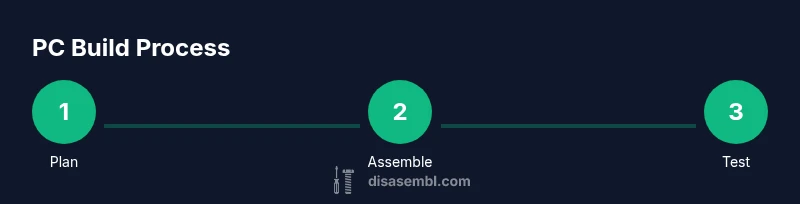
You will learn to plan your build, choose compatible components, assemble the hardware, install the operating system, and run initial tests. The guide covers part compatibility, safe grounding, case layout, cable management, BIOS setup, and burn-in testing. By following these steps, you’ll minimize troubleshooting and achieve a reliable, upgrade-friendly PC build.
Plan Your Build: Define Purpose, Budget, and Scope
According to Disasembl, starting with a clear use-case and budget prevents feature creep and compatibility headaches. Begin by listing your intended uses—gaming, content creation, work tasks—and the level of performance you expect at your target resolutions. Establish a rough budget range and a hard limit for spending beyond which you won’t go. Then translate those needs into a parts shortlist: CPU, GPU, motherboard, memory, storage, power supply, case, and cooling. A well-scoped plan guides every subsequent decision and helps you avoid buying components that don’t play well together. Document your choices and notes as you go to build a reference for future upgrades.
Choose Components with Compatibility in Mind and Future-Proofing
Compatibility is the backbone of a smooth build. Start with the CPU socket and motherboard chipset to ensure future upgrade paths align with your goals. Verify RAM type and speed supported by the motherboard, as well as the maximum capacity. Consider PCIe version alignment for your GPU and NVMe drives, and check power supply wattage with headroom for peak loads and potential future upgrades. Don’t overlook case size and GPU length; a tall CPU cooler or thick front panel can limit clearance. Selecting modular cables and a PSU with clean connectors reduces cable clutter and improves airflow. Finally, aim for a balance between price and longevity by prioritizing reliability and easy upgrade paths over bleeding-edge, short-term gains.
Prepare Your Workspace and Gather Tools
Create a clean, static-free workspace with good lighting. Lay out all components on an anti-static mat and have a magnetic parts tray for small screws. Essential tools include a Phillips head screwdriver (size #2) that can reach tight screws, an anti-static wrist strap to prevent electrostatic discharge, and cable ties for tidy routing. Optional tools like a Torx driver or a utility knife can help in specialized cases, but they are not required for most standard builds. Prepare pre-printed labels or sticky notes to label cables and connections, which speeds up assembly and reduces errors during reassembly or future upgrades.
Install the Power Subsystem and Prepare the Case
Begin by installing the power supply into the case with the fan facing outward for better airflow. Route the main power cables toward the motherboard tray without bold bending. Install motherboard standoffs in the case, then install the I O shield into the case opening. The shield should click into place securely, as it ensures correct rear panel alignment and prevents short circuits. Double-check that the case’s front panel connectors align with the motherboard’s headers. Keep extra screws organized and avoid over-tightening, which can strip threads or damage components.
Mount the Motherboard Components: CPU, RAM, and Cooler
With the motherboard outside the case, install the CPU into its socket using the alignment notch. Apply a tiny amount of thermal paste if your cooler requires it and install the CPU cooler according to its mounting pattern. Insert RAM sticks into the correct slots for dual channel operation, ensuring the notches align and the sticks click into place. If using a compact cooler, verify RAM clearance before securing the cooler. Attach motherboard standoffs to the case and prepare the motherboard for installation by threading the I O shieldless side and connectors through the chassis cutouts. When mounting, do not force connectors; ensure the alignment is correct before tightening.
Install Storage Drives and Graphics Card
Mount NVMe drives directly onto the motherboard if supported, or use the appropriate M.2 slots with retention screws. For SATA drives, connect power and data cables, routing them neatly to avoid obstructing fans or hinges. Install the graphics card in the primary PCIe slot, ensuring it sits evenly and the rear I O bracket aligns with the case. Secure the card with screws and connect the PCIe power cables from the PSU if required by the GPU. Check that every component is seated firmly but not forced and that GPU power connectors match the card’s needs.
Connect Cables, Manage Wires, and Prepare for First Boot
This step focuses on clean, unobstructed airflow. Connect motherboard power, CPU power, and all data cables for storage devices. Use cable ties to route cables behind the motherboard tray and away from fans or intake vents. Re-check motherboard connectors for accuracy and ensure no loose screws or loose wires can cause shorts. Before powering on, confirm the front panel connectors for power, reset, and LED indicators are properly seated. A loose connection can prevent the system from posting or cause intermittent issues that are hard to diagnose later.
First Boot, BIOS Setup, and OS Installation
Power on and listen for POST signals; if the system boots, enter the BIOS to verify CPU temperature, fan curves, memory timings, and boot order. Enable XMP or DOCP for RAM if you’re using higher-speed modules, but only after confirming stability. Set the boot drive as the primary OS source, and begin the OS installation. Install relevant chipset and GPU drivers after the OS is installed, then run a basic stress test to verify stability. If the system fails to post, recheck component seating, power connections, and BIOS version compatibility with your CPU.
Testing, Monitoring, and Troubleshooting
Run practical stress tests to validate stability and thermals. Monitor temperatures under load and verify that all fans respond to temperature changes. If temperatures spike or the system crashes, check thermal paste application, cooling efficiency, and airflow. Examine event logs for error codes and revisit BIOS settings if necessary. Maintain a log of temperatures and clock speeds to detect gradual performance degradation. If issues persist, re-seat components one at a time, starting with the GPU and RAM, to isolate the culprit.
Documentation, Upgrades, and Routine Maintenance
Document every configuration change, driver update, and BIOS version for quick reference. Maintain a habit of checking for driver updates and firmware notes from component manufacturers. When planning upgrades, verify compatibility with your existing motherboard, PSU, and case space. Create a khaki-colored maintenance checklist that includes cleaning dust filters, reseating cables, and testing idle and load temperatures every few months. Proper documentation and a proactive upgrade plan extend the life of your PC and simplify future improvements.
Tools & Materials
- Phillips #2 screwdriver(Magnetic is helpful for small screws; include both short and long tips if possible)
- Anti-static wrist strap(Prevents electrostatic discharge during component handling)
- Cable ties(For tidy cable management and airflow)
- Thermal paste(Only needed if cooler does not come with pre-applied paste)
- Torx driver(Optional for some cases or screws)
- Magnetic parts tray(Keeps small screws organized)
Steps
Estimated time: 90-150 minutes
- 1
Unbox and verify components
Lay out all parts and check against your bill of materials. Confirm there are no damaged labels, missing screws, or bent connectors. This prevents interruptions later and helps you plan cable routing from the start.
Tip: Take photos of each component's labeling before you start to simplify troubleshooting. - 2
Install the power supply and prepare the case
Secure the PSU in the case with the fan orientation toward airflow. Route the main and CPU power cables toward the motherboard tray but keep them loose to allow for easier cable management later.
Tip: Do not force cables through tight gaps; use grommets and cutouts to guide wires. - 3
Attach motherboard standoffs and I O shield
Screw in motherboard standoffs at the correct mounting holes. Snap the I O shield into the back of the case. Ensure the shield aligns with the motherboard I O ports and sits flush.
Tip: Double-check the shield’s orientation before pressing it fully in. - 4
Install CPU, RAM, and cooler outside the case
Place the CPU into the socket using the notch alignment. Install the RAM sticks into the correct slots for dual-channel operation. Attach the cooler according to its mounting system; apply a thin layer of paste if required.
Tip: Never touch the CPU pads; handling only by the edges preserves integrity. - 5
Mount motherboard and attach power cables
Secure the motherboard to the case with screws and align all headers with their respective connectors. Attach the 24-pin motherboard power and 8-pin CPU power cables, ensuring snug connections.
Tip: Hand-tighten screws to avoid strip damage; use a screwdriver with a comfortable grip. - 6
Install storage and GPU
Mount NVMe drives in their slots or install 2.5 inch SATA drives with retention screws. Insert the GPU into the primary PCIe slot and secure with a screw. Connect any required power cables to the GPU.
Tip: Check the GPU seating before powering on; a loose card can cause no-POST issues. - 7
Connect cables and route for airflow
Connect data and power cables for drives and fans, then route them behind the motherboard tray. Use cable ties to keep cables tidy and avoid blocking fans or intake vents.
Tip: Label cables to simplify future upgrades or maintenance. - 8
First boot and BIOS setup
Power on and enter BIOS to verify temperatures, fan curves, and boot priority. Enable XMP/DOCP if RAM supports it and you’re confident in stability. Save changes and boot to the OS installer.
Tip: If POST fails, reseat RAM and GPU before changing BIOS settings. - 9
OS installation and initial testing
Install the operating system, drivers, and essential software. Run a basic stress test to confirm stability and monitor temperatures. Document any anomalies for later investigation.
Tip: Run a quick baseline: CPU and GPU temps under load to confirm cooling is adequate. - 10
Final checks and routine maintenance
Verify all connectors, clean dust filters, and ensure the system remains well ventilated. Create a simple maintenance plan to keep the system performing optimally over time.
Tip: Schedule periodic checks to prevent creeping dust buildup and thermal throttling.
Got Questions?
What is the essential first step when planning a PC build?
Define your use-case, budget, and performance targets. This guides component choices and prevents costly mismatches.
Start by defining what you’ll use the PC for, set a budget, and outline performance targets to guide your choices.
Which tools do I need to assemble a PC?
A Phillips head screwdriver and an anti-static wrist strap are essential; cable ties are highly recommended for neat cable management.
You’ll need a Phillips screwdriver, anti-static strap, and cable ties for tidy wiring.
How can I avoid compatibility issues?
Check CPU socket compatibility, motherboard form factor, RAM type and speed, and PSU wattage with headroom for future upgrades.
Make sure the CPU, motherboard, RAM, and power supply all align in spec and future-proofing.
Is thermal paste necessary for all CPUs?
Many coolers come with pre-applied paste; apply more only if your cooler requires it and you know the surface is clean.
Usually not, but apply paste if your cooler doesn’t have it pre-applied.
How long does a typical build take for a first-timer?
Most first-timers spend 1.5 to 3 hours depending on experience and component complexity.
Expect about one and a half to three hours for a first build.
What should I do after the first boot?
Enter BIOS to verify temps and settings, install the OS, and then install drivers and updates.
Check BIOS, then install the OS and drivers for a clean start.
What safety precautions should I follow during a build?
Work on a non-conductive surface, keep liquids away, and disconnect power when reseating components.
Stay dry, keep liquids away, and unplug before handling parts.
How can I plan future upgrades effectively?
Choose a motherboard and PSU with headroom and ensure case space accommodates potential GPU and cooling upgrades.
Select components with expansion in mind to ease future upgrades.
Watch Video
What to Remember
- Plan first, buy with compatibility in mind
- Assemble in a clean, static-free space
- Verify connections before powering on
- Document changes for upgrades
- Test thoroughly and monitor thermals