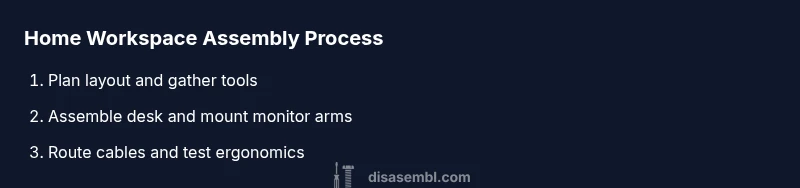
Assemble Work From Home: A Practical Step-by-Step Guide
Learn how to assemble a productive work-from-home setup with a desk, chair, monitor, and ergonomic considerations. This step-by-step guide covers planning, budgeting, cable management, lighting, and safety to help you build a comfortable home office.


Assemble a functional home-workspace by selecting a sturdy desk, ergonomic chair, and properly positioned monitor. You’ll also plan lighting, cable management, and task lighting for comfort. According to Disasembl, a well-planned work-from-home setup boosts productivity and reduces fatigue. This quick guide leads you through essential steps and safety checks to get you started today.
How to assemble work from home: why it matters
A dedicated, well-organized workspace helps you stay focused, reduces distractions, and supports healthier work habits. When you assemble work from home space, you create a boundary between personal and professional life, which improves task switching and reduces fatigue. According to Disasembl, a thoughtfully planned setup aligns furniture with your natural posture, optimizes screen visibility, and streamlines daily routines. In this article, we explore the core reasons to invest time in planning and assembly before you plug in devices.
Planning the layout: space, power, and posture
Before you lift a single screw, map out your ideal layout. Measure your room, designate a desk area away from high-traffic zones, and plan for natural light to minimize glare. Consider power needs: a surge-protected strip near the desk, accessible outlets, and hiding cables to prevent tripping. Posture should guide your furniture choices: the chair height, desk depth, and monitor distance should let you sit with feet flat, forearms parallel to the desk, and eyes level with the top of the screen. This proactive planning reduces later rearrangements and makes assembly smoother.
Choosing a desk, chair, and monitor setup
Your desk should provide enough surface for keyboard, mouse, and monitor(s) with space to spare for notebook and reference material. A stable desk reduces wobble and keeps peripherals within comfortable reach. An adjustable, ergonomic chair supports the lumbar spine and allows proper seat depth. For monitors, aim for at least one screen at eye level and—if possible—a secondary monitor placed at an equal distance to avoid neck rotation. Use a stand or articulating arm so you can adjust height without crowding the desk.
Lighting and acoustics for a comfortable environment
Natural daylight boosts mood and focus, while task lighting reduces eye strain on late work sessions. Position your light source to avoid monitor glare, not behind you. Acoustic comfort matters too: choose a quiet location or add soft materials like rugs, curtains, or a small bookshelf to dampen noise. A simple setup with warm, adjustable lighting supports long days of video calls and deep work alike.
Cable management and device placement for efficiency
Plan a clean cable backbone from each device to power and network sources. Use cable sleeves, clips, and a central channel to route wires along the desk edge and under the surface. Label cords so you can quickly identify printers, docks, or external drives. Place frequently used devices within easy reach while tucking away power adapters to reduce clutter and hazards.
Ergonomic considerations: seating, monitor height, and keyboard reach
This section covers posture science: keep your spine neutral, wrists straight, and elbows at a comfortable angle. The monitor should be top-aligned with your eyes, not tilted. The keyboard and mouse should sit where your forearms rest comfortably and your shoulders stay relaxed. Take short breaks every hour to stretch, which helps maintain circulation and prevent strain.
Tools, materials, and a checklist before you start
Gather the essential components and tools in advance to avoid mid-assembly trips. A compact toolkit, soft tape measure, level, and screwdriver are often enough for most desks and mounts. Keep a maintenance kit with spare screws, washers, and cable ties. A quick checklist helps ensure you don’t overlook small but important details, such as anti-slip pads and desk mats for protecting surfaces.
Maintenance, budget, and future-proofing your workspace
Set aside a small budget for upgrades like better lighting, monitor arms, or ergonomic accessories as your needs evolve. Periodic checks of cables, desk integrity, and chair function help sustain performance and comfort. Invest in modular components that can scale with you as work demands change, such as adjustable monitor arms and a flexible desk surface that can accommodate more gear over time.
Common mistakes and quick fixes for home offices
Ten common mistakes include underestimating space, neglecting cable management, and choosing a non-ergonomic chair. Quick fixes—like adding a monitor riser, using a keyboard tray, or installing a simple cable-d leveling strip—can dramatically improve comfort. Regularly reassess your setup after changes in work tasks or household routines to maintain an efficient, healthy environment.
Tools & Materials
- Desk(Sturdy with enough surface for keyboard, mouse, and monitor)
- Ergonomic chair(Lumbar support; adjustable height)
- Monitor(s)(At eye level; consider 2nd monitor setup)
- Keyboard and mouse(Ergonomic, comfortable for long sessions)
- Monitor stand or arm(Height-adjustable for flexibility)
- Desk lamp(Adjustable brightness for task lighting)
- Power strip with surge protection(Near desk outlets; ensure overload protection)
- Cable management supplies(Cable ties, clips, sleeves to organize wires)
- Docking station or USB hub(Optional for multiple peripherals)
- Screwdriver set(Phillips and flathead; common sizes)
- Measuring tape(For layout planning and spacing)
- Level(To ensure surfaces are flat and aligned)
Steps
Estimated time: 60-120 minutes
- 1
Plan and measure space
Start by outlining the desk footprint and measurement of the room. Mark potential desk locations with painter’s tape to visualize spacing. This step helps prevent awkward fits and ensures sufficient clearance for movement.
Tip: Use painter’s tape to map the exact footprint before moving heavy furniture. - 2
Unpack and verify components
Open boxes and inventory all parts against the manufacturer’s list. Verify screws, brackets, and connectors are present to avoid mid-assembly delays. If something is missing, contact the retailer before proceeding.
Tip: Take photos of each box’s contents as a quick reference during assembly. - 3
Assemble desk frame or install desk
Assemble the desk frame according to the manufacturer’s instructions or position a ready-made desk in place. Tighten fasteners in a criss-cross pattern to distribute load evenly. Have a partner assist with heavy frames to prevent damage.
Tip: Avoid cross-threading by starting each screw by hand before tightening with a screwdriver. - 4
Mount monitor arms and position monitors
Attach monitor arms or stands to the desk, ensuring the mounting surface is secure. Place monitors at eye level and at a comfortable viewing distance. If you use two displays, align their tops and center them to reduce neck strain.
Tip: Test reach and visibility from your typical seated posture before final tightening. - 5
Adjust chair and establish ergonomic baseline
Set your chair height so your feet rest flat and thighs are parallel to the floor. Position the chair to support a slight recline and confirm forearms are level with the desk. A healthy posture reduces long-term strain.
Tip: Take a 2-minute seated posture check and adjust as needed. - 6
Route cables and install power management
Group cables behind the desk, using clips or a cable sleeve. Route the power strip within easy reach but out of the way of feet. Label cords for quick identification during future changes.
Tip: Keep power and data cables separate to reduce interference. - 7
Place keyboard, mouse, and laptop/dock
Position the keyboard and mouse at a comfortable reach so your shoulders stay relaxed. If using a dock, place it within arm’s reach and ensure cable paths stay tidy. Leave space for a notebook or planner.
Tip: Test typing comfort with a few typical tasks to confirm placement. - 8
Test lighting and acoustics
Check for monitor glare and adjust desk lamp positioning. Add soft furnishings if needed to dampen echoes and reduce noise during calls. A well-lit, quiet environment supports focus and video clarity.
Tip: Aim for a mix of ambient, task, and natural light to reduce eye strain. - 9
Final safety check and daily use routine
Inspect for loose screws, trailing cables, and sharp edges. Create a short daily routine to tidy cables and re-check posture. Document any recurring adjustments to guide future improvements.
Tip: Schedule a monthly reset to prevent clutter from building up.
Got Questions?
What equipment do I need to assemble a home workstation?
You’ll need a sturdy desk, an ergonomic chair, a monitor setup (one or two screens), a keyboard and mouse, a monitor stand or arm, a lamp, a surge-protected power strip, and basic cable management supplies. A screwdriver set, measuring tape, and a level will help with precise assembly.
To build a home workstation, gather a sturdy desk, an ergonomic chair, monitor setup, keyboard and mouse, and cable management supplies. A few basic tools finish the job.
How long does it take to assemble a home workspace?
Most people complete a basic setup in 30-60 minutes, depending on the number of components and whether you need to mount monitors. Allow extra time if you’re assembling from scratch or including a desk with complex hardware.
Typical assembly takes up to an hour, depending on components and mounting steps.
Do I need professional help for assembly?
Most home workstations can be assembled by a confident DIYer using common tools. If you have a heavy or complex desk, two people can help, and you should consult product manuals for safety.
For most setups, DIY assembly is fine. Heavy desks may benefit from a second pair of hands.
What are essential ergonomic features to look for?
Key features include an adjustable chair with lumbar support, a desk at a comfortable height, a monitor at eye level, and a keyboard/mouse position that keeps wrists straight and shoulders relaxed.
Look for an adjustable chair, monitor that’s at eye level, and a keyboard setup that keeps your wrists straight.
How can I manage cables effectively?
Use cable ties, sleeves, and clips to group and route wires along the back of the desk. Label cords and keep power and data cables organized to prevent tripping hazards and interference.
Label and group cables with clips or sleeves to keep your desk tidy and safe.
How often should I reassess my setup?
Reassess whenever your tasks change or you notice discomfort. Periodic adjustments keep the workspace aligned with your work style and health needs.
Check your setup whenever your tasks change or you feel discomfort, then adjust as needed.
Watch Video
What to Remember
- Plan and measure before purchasing or assembling.
- Prioritize ergonomics: desk height, chair support, monitor level.
- Use modular components for future upgrades.
- Implement solid cable management to reduce clutter and hazards.
- Reassess your setup after changes in tasks or routines.