How to Assemble a Desktop PC: A Step-by-Step Guide
Learn to assemble a desktop PC from compatible parts with practical, step-by-step instructions, safety tips, and post-build checks for a reliable, upgrade-ready system.


By the end of this guide, you will assemble a desktop PC from compatible parts, perform essential safety steps, and validate a successful boot. You’ll learn how to plan parts for compatibility, choose a case and motherboard, install the CPU, RAM, storage, and power supply, and perform post-build testing to confirm stability.
Why assembling a desktop matters
To assemble desktop PCs that perform consistently and last years, you need a plan, compatible parts, and careful assembly. According to Disasembl, a deliberate approach reduces common failures and simplifies upgrades. This article explains why building a custom desktop pays off in performance, customization, and value, compared with off-the-shelf prebuilt systems. Before buying, define your primary use: gaming, content creation, or general productivity; this guides your motherboard form factor, PSU capacity, and cooling strategy. Safety is not optional—ground yourself, handle components by their edges, and keep liquids away. Planning also helps you avoid scarcity-driven compromises when parts are scarce, which is common in the DIY space. By documenting a methodical checklist, you’ll minimize last-minute improvisation and mistakes. The result is a stable platform that you can upgrade piece by piece. If you’re new to PC assembly, expect a learning curve; if you’re experienced, this framework helps you stay organized and avoid overlooked details.
Planning your build: parts and compatibility
The first step to a successful build is planning parts and compatibility. Disasembl emphasizes starting with a complete bill of materials and verified compatibility between the motherboard, CPU, memory, storage, and graphics card. Create a simple matrix of key constraints: socket type, RAM generation, PCIe version, power requirements, and physical clearance. When you assemble desktop components, you’ll find that a little upfront vetting saves hours of troubleshooting later. Determine your budget and prioritize components that influence performance most (CPU, GPU, and fast storage) while leaving headroom for future upgrades. Size matters: the motherboard form factor (ATX, microATX, ITX) dictates which cases you can use and how many expansion slots you’ll have. Check cooling compatibility—case fans or a radiator should fit without obstructing RAM or GPU. Finally, plan for cables: longer cables are fine if you route them cleanly; clip or zip-tie them to maintain airflow. By documenting your build plan, you’ll move confidently from parts shopping to actual assembly.
Choosing a case and motherboard form factor
The right case supports your motherboard form factor and airflow goals. ATX is common for mid-tower builds, while microATX and ITX offer compact options; always confirm that your case accommodates the chosen motherboard. Consider GPU clearance: a large graphics card may require a longer case depth or a horizontal mount. Airflow design is critical; a good layout minimizes hot spots and reduces fan noise. This is where Disasembl’s practical guidance helps: align fans with intake at the front and exhaust at the rear or top, and think about dust filters. If you plan to assemble desktop components for a home theater PC, a compact ITX case with a quiet cooler might be ideal. Cable routing points, motherboard standoffs, and power supply shrouds influence ease of assembly and aesthetics. Remember to verify I/O panel alignment with your desk setup—front panel USB-C is increasingly common and convenient. A thoughtfully chosen case and motherboard foundation sets the stage for a clean, maintainable build.
Selecting CPU, RAM, and storage
CPU choice drives everything: performance, power use, and compatibility with the motherboard socket. Ensure the motherboard BIOS supports your selected CPU out of the box or plan for a BIOS update if necessary. RAM should match the motherboard’s supported generation and speed, with capacity aligned to your tasks. For most users, 16 GB is a solid baseline for multitasking, while 32 GB benefits content creation or heavy workloads. Storage options matter: a fast NVMe SSD for the OS and applications yields snappy performance, while additional SATA drives can expand capacity affordably. If you’re building a gaming desktop, prioritize a capable GPU and fast storage to reduce load times. Take thermal considerations into account: energy-hungry CPUs and GPUs generate heat, so plan for adequate cooling. This section focuses on practical, real-world choices that balance performance and value, so you can assemble desktop hardware that meets your needs today and in the near future.
Power, cooling, and cable management
Choosing a power supply with enough wattage and headroom is essential; overspec doesn’t hurt, but excessive efficiency losses can matter. Use a PSU calculator or reference recommended ranges from credible sources to estimate wattage based on your components. Efficiency certification (80 Plus Bronze or better) can save electricity and heat. Cooling is not optional: ensure your CPU cooler fits the socket and that enough clearance exists for RAM heat spreaders or tall CPU coolers. For GPUs, consider additional case fans or a cooling solution that maintains airflow without creating noise hotspots. Cable management improves airflow and future upgrades; plan routes behind the motherboard tray, use zip ties, and label connectors for easier maintenance. Grounding and anti-static precautions protect components during handling. When done, a tidy build not only looks better but also reduces dust buildup and prolongs component life. If you keep your cables neat, you’ll be rewarded with easier upgrades later.
Assembly steps overview and post-build checks
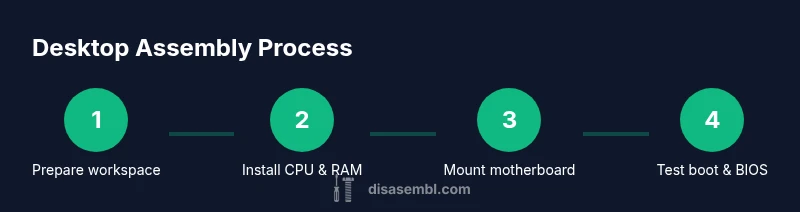
This section provides a high-level roadmap for the build and sanity checks before you install an operating system. Begin with a clean workspace and anti-static precautions. Install the CPU, RAM, and motherboard outside the case to verify seating and compatibility; this helps catch misalignment early. Mount the motherboard in the case only after you’ve prepared standoffs and checked I/O alignment. Install storage drives and PCIe devices in the expected slots, connect the power supply, and route cables with care. Before powering on, double-check all power connectors (24-pin, CPU 8/4-pin, PCIe) are seated, and ensure sleeves or extensions won’t obstruct fans. Perform a POST test with minimal components to confirm basic functionality, then install the GPU and any additional drives. If the system posts, enter BIOS to verify hardware is recognized, adjust boot order, and enable XMP profiles if you plan to run RAM at speed. Finally, proceed with OS installation and driver updates as needed.
What to expect during testing and OS setup
After successful POST and BIOS configuration, you’ll install your operating system and drivers. Time estimates vary, but plan for updates, driver installation, and possible BIOS tweaks. Run basic stress tests and monitor temperatures to ensure cooling is adequate, especially under load; address any overheating concerns by adjusting fans or improving airflow. Expect a few driver compatibility surprises when combining new hardware with older software; a little troubleshooting goes a long way. Create a system restore point early in the OS setup so you can revert if something goes wrong. Once the OS is installed, install essential software, update firmware for peripherals, and configure backups. With diligence and patience, you’ll finish a sturdy, upgrade-friendly desktop that delivers reliable performance for years to come. The Disasembl team emphasizes documenting your build notes and testing results for future upgrades.
Tools & Materials
- Anti-static wrist strap(Wear on bare skin and clip to a grounded surface)
- Phillips head screwdriver (size #2)(Essential for motherboard standoffs and case screws)
- Thermal paste(Only if your cooler or CPU cooler base lacks pre-applied paste)
- Cable ties (zip ties)(For neat cable routing and airflow)
- Isopropyl alcohol wipes(Used for surface cleaning and removing residue)
- Anti-static mat or tray(Optional but helpful for organizing parts)
Steps
Estimated time: 1-2 hours
- 1
Prepare your workspace
Clear a large, clean area and lay out components and tools. Ground yourself with an anti-static wrist strap and work on a non-conductive surface. This reduces the risk of damaging sensitive parts during handling.
Tip: Keep components in their anti-static packaging until you’re ready to install. - 2
Install the CPU to the motherboard outside the case
Align the CPU with the socket and firmly but gently seat it. Close the socket latch and apply a small amount of thermal paste if required by your cooler. Check that the CPU is oriented correctly to avoid bending pins or damaging the socket.
Tip: Double-check notch markers and socket compatibility before seating. - 3
Install RAM modules
Open the RAM slots’ latches and align the memory sticks with the notches. Press firmly until you hear a click on both ends, indicating the modules are locked in. Verify each module is seated evenly.
Tip: Install in the recommended slots if you’re using multiple sticks to maximize performance (per motherboard manual). - 4
Mount the motherboard in the case
Place the I/O shield in the case, align the motherboard with the standoffs, and secure it with screws. Do not overtighten; ensure the motherboard sits flat and screws are snug. Avoid bending any traces.
Tip: Install a standoff under the motherboard first to prevent shorts. - 5
Install storage drives
Mount NVMe drives into M.2 slots or place 2.5" SSDs/HDDs in their bays. Secure them with screws and connect the appropriate data and power cables. Route cables cleanly to minimize obstruction to fans.
Tip: Keep the shorter NVMe SSDs near the motherboard for tidy cabling. - 6
Install the power supply and route cables
Insert the PSU into the case and secure it. Attach the main 24-pin motherboard power and CPU 8/4-pin connectors, along with PCIe power to the GPU if needed. Use cable management channels to hide and guide cables.
Tip: Plan cable routes before fastening the PSU to keep airflow clear. - 7
Connect data and power cables
Connect SATA/PCIe data cables to drives and motherboard, ensuring proper orientation. Attach case fans and front-panel connectors (power, reset, USB, audio) according to the motherboard manual. Avoid loose connections and verify at least two power cables are secured.
Tip: Label connectors beforehand if you’re new to PC builds. - 8
First boot and post-check
Power on to check POST. Enter BIOS to verify detected hardware, adjust boot order, and enable XMP if RAM supports it. If the system posts, monitor temperatures and fan behavior; fix any cooling or clearance issues before OS installation.
Tip: If you don’t see a display, recheck CPU seating and PCIe power connections.
Got Questions?
Do I need to ground myself before handling components?
Yes. Use an anti-static wrist strap and work on a non-conductive surface to minimize the risk of ESD damage.
Yes. Always ground yourself with an anti-static strap and work on a non-conductive surface to avoid damaging parts.
What is the minimum RAM required for a desktop build?
For general tasks, 8 GB is a baseline; 16 GB is commonly recommended for multitasking and more demanding apps.
8 gigabytes is a baseline for simple tasks; 16 gigabytes is better for multitasking and modern apps.
How do I choose the right power supply wattage?
Estimate wattage based on your components and allow some headroom for upgrades; use a reputable PSU calculator and aim for quality efficiency.
Estimate wattage with a calculator and choose a unit with some headroom for upgrades.
Should I update the BIOS before installing components?
BIOS updates are sometimes needed for new CPUs. Check your motherboard’s documentation and perform updates if recommended.
Check if your motherboard requires a BIOS update for your CPU and do it if advised.
Can I reuse an existing case or drives?
Yes, if compatibility is preserved (form factor, mounting points, connectors). Some adapters or spacers may be needed.
Yes, reuse is possible if the form factor fits and connectors are compatible.
What safety precautions should I follow?
Disconnect power, avoid liquids, and handle components by edges to reduce the risk of damage.
Always unplug power, keep liquids away, and handle parts by their edges.
Watch Video
What to Remember
- Plan parts for compatibility before buying
- Test CPU/RAM seating before case installation
- Ensure PSU headroom for future upgrades
- Do thorough post-boot testing to confirm stability