How to Assemble in SolidWorks: A Step-by-Step Guide
Learn how to assemble parts in SolidWorks with mates, subassemblies, configurations, and validation. Disasembl guides you through planning, building, and verifying assemblies for reliable CAD models.


Goal: Learn how to assemble in SolidWorks, from planning and inserting components to applying mates and validating the result. You will create subassemblies, set reference geometry, and build configurations to manage variants. According to Disasembl, a clear assembly strategy reduces rework and speeds up design iterations. By the end you’ll be ready to structure complex assemblies, troubleshoot interference, and produce exploded views for documentation.
Why mastering SolidWorks assembly matters
When you learn how to assemble in SolidWorks, you gain a powerful tool for turning flat parts into functional products. A well-planned assembly helps you verify fit, motion, and manufacturability early, reducing costly rework downstream. In professional environments, clear assemblies improve communication with engineers, machinists, and suppliers, and they support accurate drawings, BOMs, and revision control. This section explores the strategic advantages of assembling parts in SolidWorks: establishing a logical hierarchy, naming conventions, and a modular approach that mirrors real-world assembly lines. By thinking about how components interact from the start, you’ll cut iterations and speed up review cycles. Disasembl emphasizes that a deliberate plan for how to assemble in solidworks sets the stage for reliable results and repeatable workflows.
Key concepts: components, mates, and constraints
At the core of any SolidWorks assembly are three ideas: components (the parts you combine), mates (the rules that define how parts fit and move relative to each other), and constraints (geometric references that limit motion). Components can be standard parts or custom features; mates include coincident, parallel, perpendicular, concentric, and distance mates. Understanding these elements helps you model precise motion, avoid floating parts, and create robust assemblies that behave predictably when colors, materials, or tolerances change. This section also covers reference geometry, such as planes and axes, which you’ll use to align components consistently. As you learn how to assemble in solidworks, you’ll see how a thoughtful mating strategy reduces edit time and keeps your design intent intact across configurations and revisions.
Planning your SolidWorks assembly: structure and subassemblies
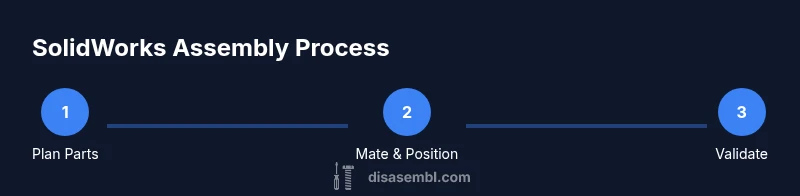
A successful SolidWorks assembly starts with a clear plan. Before you drag parts into the workspace, outline the assembly tree: identify core components, subassemblies, and any optional variants. Subassemblies help you manage complexity by isolating a functional group (for example, a gearbox or a drawer mechanism) so you can position and test it independently. Decide how you’ll reference geometry between components, set up a naming convention, and determine which files will be lightweight in initial placements to speed up boot times. The disciplined approach described here aligns with Disasembl guidance: plan, then model, then validate, rather than loading every part at once. This reduces memory pressure and makes it easier to trace design intent when you share the model with teammates.
Building efficiently: best practices for fast, reliable assemblies
Efficiency in SolidWorks assembly work comes from reuse, modularity, and performance-conscious design. Start with lightweight components for early positioning and convert to full-detail parts only when necessary. Keep the feature manager organized by grouping related parts, and use subassemblies to keep the top-level tree manageable. Use configurations to capture variants rather than duplicating parts, which saves time and keeps data consistent. Disasembl analysis shows that a structured workflow—planning, batching mates, and validating frequently—reduces time spent on rework and helps teams converge on a final design faster. Finally, document the intended assembly flow with exploded views early in the project to aid reviews and manufacturing handoffs.
Validation and communication: interference checks and exploded views
Validation is essential to prevent surprises in prototype builds. Use Interference Detection and Clearance checks to verify there are no collisions or tight clearances that could cause assembly issues. Regularly simulate the range of motion for moving assemblies to confirm that parts don’t interfere under expected conditions. Exploded views are not just for documentation; they’re a powerful communication tool for manufacturing, service, and assembly teams. Create a clean exploded view early, annotate it with callouts, and link it to the appropriate BOM so stakeholders can understand how the product goes together. The habit of documenting early improves clarity and reduces back-and-forth during integration.
Common mistakes and how to avoid them
New SolidWorks users frequently run into confusions around assembly order, mates, and hierarchy. Common errors include over-constraining parts, failing to use subassemblies, and neglecting reference geometry that guides placement. To avoid these pitfalls, define a high-level structure first, aggregate components into logical subassemblies, and apply a small, well-considered set of mates to each stage. Always validate the tree structure after adding a new part, and perform a quick interference check before finalizing your model. The Disasembl team recommends establishing a naming standard, keeping configs for variants, and revisiting your mates after any major design change to preserve intent and reliability.
Tools & Materials
- SolidWorks software (2026 or newer)(Licensed installation on a capable workstation)
- A computer with adequate performance(Recommended modern CPU, at least 16 GB RAM, SSD storage)
- Component source files(SolidWorks parts/assemblies or STEP/IGES/SAT equivalents)
- Reference geometry tools(Planes, axes, origins in the model or imported coordinate system)
- Naming conventions and folder structure(Consistent part/assembly naming to keep tree readable)
- BOM templates or configuration manager(Helpful for downstream manufacturing or procurement)
- Exploded view templates(For documentation and assembly instructions)
- Interference/Simulation add-ins (optional)(For advanced validation and motion analysis)
Steps
Estimated time: 1-3 hours
- 1
Create a new Assembly document
Open SolidWorks and create a new Assembly file. Set unit system (mm or inches) to match your project, then save to a dedicated folder structure. Establish the main coordinate system for future references.
Tip: Plan the top-level structure before adding parts to minimize tree clutter. - 2
Insert components into the assembly
Use Insert Components to place core parts. Choose reference parts first and use lightweight components for quick boot-up. Arrange the initial layout to resemble your intended product envelope.
Tip: Drop in primary bodies first to anchor the layout and provide a stable reference. - 3
Establish a base component and anchor it with mates
Select a primary component as the anchor and apply ground or coincident mates to position it. This creates a stable foundation for all other parts to align against.
Tip: Keep base mates minimal at this stage to avoid over-constraint. - 4
Apply primary mates to position parts
Add a small, focused set of mates (concentric, parallel, distance) to place remaining components. Validate motion with simple sweep tests to ensure clearance.
Tip: Group related parts and create subassemblies as you progress to reduce complexity. - 5
Create subassemblies for complex groups
Move related components into subassemblies to simplify the main assembly tree. Subassemblies help with performance and enable independent testing of functional units.
Tip: Name subassemblies descriptively to reflect their function. - 6
Add patterns or mirrored copies if needed
Use linear or circular patterns for repeated parts and mirror features for symmetric assemblies. This keeps the model consistent and easier to update.
Tip: Always test a single instance before patterning to catch errors early. - 7
Run an interference/clearance check
Activate Interference Detection to find collisions. Adjust placements or tolerances to resolve issues before finalizing.
Tip: Run checks at multiple configurations to catch end-user scenarios. - 8
Create exploded view and save configurations
Generate an exploded view to document assembly order. Save configurations for variants and maintain an organized record for manufacturing
Tip: Attach callouts and BOM to the exploded view for clarity.
Got Questions?
What is the first step to start an assembly in SolidWorks?
Create a new Assembly document, set the units, and define the origin. This establishes a stable framework for all subsequent parts and mates.
Start by creating a new Assembly document and setting units, then define the origin to establish a stable framework.
How do I constrain parts with mates effectively?
Begin with a small set of core mates such as Coincident, Parallel, and Concentric. Avoid over-constraining by adding only what’s necessary for correct motion.
Use a few essential mates like Coincident, Parallel, and Concentric, and avoid over-constraining.
What should I do to manage large assemblies?
Break the model into subassemblies, use lightweight components for placement, and rely on configurations to handle variants. This keeps the tree manageable and improves performance.
Break the model into subassemblies and use lightweight components to improve performance.
How can I verify there are no interferences?
Run the Interference Detection tool and review any collisions. Resolve issues by adjusting positions or tolerances and rechecking.
Run interference checks to detect collisions and fix placements as needed.
How do I create an exploded view?
Use the Exploded View feature to step parts apart for documentation and assembly guidance. Save and annotate for clarity.
Create an exploded view to document assembly order and annotate it for clarity.
Watch Video
What to Remember
- Plan before modeling to save time.
- Mate strategically to control motion and fit.
- Use subassemblies to manage complexity.
- Validate interference and create exploded views early.
- Optimize performance with configurations and lightweight components.