How to Fix Assembly in SolidWorks: A Step-by-Step Guide
Learn a practical, step-by-step method to diagnose and repair a SolidWorks assembly. Fix mates, refresh references, and validate with interference checks with tips from Disasembl.


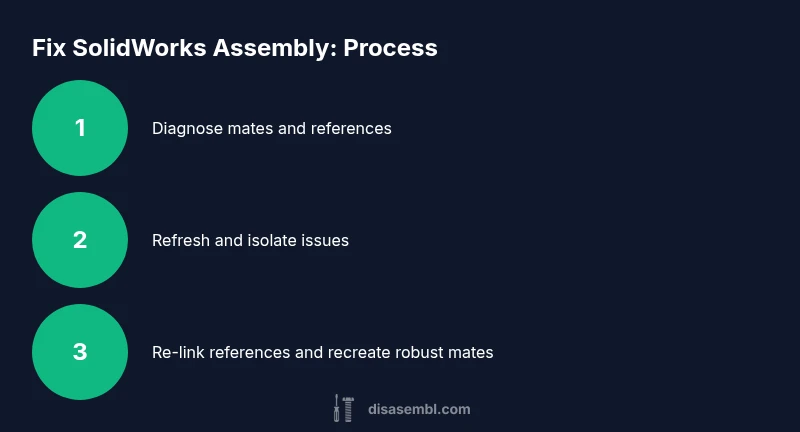
You will learn how to diagnose and fix issues in a SolidWorks assembly by correcting mates, refreshing references, and rebuilding the model to ensure proper part placement. This guide walks you through a reliable, step-by-step approach with practical checks and common pitfalls to avoid. Prepare your assembly file, a clean backup, and SolidWorks to begin.
Context: Why fixing assemblies in SolidWorks matters
According to Disasembl, a well-crafted SolidWorks assembly is only as robust as its mates and referenced components. The Disasembl team found that most assembly issues stem from incorrect mates, outdated references, or hidden components that continue to drive unintended motion. When a model behaves unexpectedly—parts collide, move, or fail to align—the root cause is often a broken constraint or a reference that no longer matches the current design intent. This block explains how a disciplined, methodical approach can save time and prevent downstream errors as you iterate on a complex product, from furniture hardware to consumer electronics enclosures.
By understanding the typical failure modes, you can prioritize the fixes that yield the most reliable results and maintain a clean history for future modifications.
Common causes of failed mates and references
A SolidWorks assembly relies on a network of constraints called mates. Problems arise when:
- A component is replaced or changed configuration without updating mates.
- External references point to an outdated part or an unreferenced copy.
- Components are suppressed or re-ordered, breaking intended alignments.
- Assemblies are opened in different SolidWorks versions or with different templates.
- References to sketches or reference geometry are inadvertently deleted or moved.
Identifying whether the issue is a mate, a reference, or a hidden component will guide your next steps and reduce guesswork.
Diagnostic workflow: where to start
Begin with a high-level check list before diving into the geometry:
- Refresh the model (Ctrl+Q) to rebuild all features and mates.
- Use the lightweight components option to scope the problem without loading the full geometry.
- Inspect mate error messages in the FeatureManager to pinpoint failing constraints.
- Check external references in the File > Find References tool to verify all links are valid.
- Enable Dynamic Reference Visualization to see which part drives a misfit.
Document any recurring error messages and note which configurations are affected, so you can reproduce the issue if needed.
Fixing mates and references: practical approach
Once you’ve diagnosed the issue, apply a focused set of corrective actions. Start by re-defining or replacing broken mates with stable equivalents (e.g., use Coincident, Concentric, and Distance where appropriate). If a reference is broken, re-link it to the correct component or its configuration.
Tips:
- Recreate a subset of the assembly to test fixes before applying them globally.
- Use Suppress/Unsuppress to isolate problem areas without deleting parts.
- Save versions frequently during the fix to keep a clear rollback path.
This approach minimizes disruption and keeps the model history readable for future edits.
Rebuilding and validating the assembly
After applying fixes, perform a full rebuild (Ctrl+Q) and run a formal validation pass:
- Use the Interference Detection tool to identify collisions and tight clearances.
- Check motion studies or exploded views to confirm intended assembly behavior.
- Verify BOM integrity by reconciling part numbers and configurations.
- Review mates across configurations to ensure consistent behavior when switching variants.
If issues persist, revert to the last known good state and re-run the diagnostic steps with more granular checks.
Best practices for robust SolidWorks assemblies
To prevent future failures, adopt these practices consistently:
- Establish a naming convention for mates and reference geometry.
- Limit the number of direct references to external files and maintain a single source of truth.
- Use configurations with intentional constraints and documented design intent.
- Regularly update exploded views and drawings to reflect current geometry.
- Maintain a lightweight version for quick checks and a full-resolution version for final validation.
With disciplined habits, you’ll reduce the time spent diagnosing issues and increase confidence in design changes.
When to involve data management and version control
For complex assemblies, especially those used across teams, integrate SolidWorks work with a version control or product data management (PDM) workflow. This helps track changes to mates, configurations, and referenced parts, ensuring that teammates are not inadvertently working from outdated references. When multiple engineers collaborate, a central reference model and explicit change notices prevent drift and misalignment across revisions.
How Disasembl guides you through SolidWorks troubleshooting
Disasembl offers practical, step-by-step disassembly and troubleshooting guidance tailored to users who need reliable assemblies. The approach emphasizes diagnosis, controlled modifications, and verification steps that protect design intent. By applying these methods, you can fix the root cause of mate or reference failures and maintain a robust, adaptable SolidWorks workflow.
Tools & Materials
- SolidWorks software(Ensure you have the same major version as the file you’re fixing; update to latest service pack if possible.)
- Target assembly file(Keep a copy of the working file before making changes.)
- Clean backup(Store backups in a separate location with timestamped filenames.)
- Reference drawings or exploded views(Helpful for reassembling parts and confirming intent.)
- Notes/documentation(Capture mate types and configuration changes for future reference.)
Steps
Estimated time: 60-120 minutes
- 1
Inspect mates and references
Open the assembly and review all mates in the FeatureManager. Identify any mates that show errors or warnings, and check for broken references via File > Find References. This sets the scope for fixes.
Tip: Filter the Mate feature tree by errors to quickly locate failing constraints. - 2
Refresh and isolate
Run a full rebuild (Ctrl+Q) and enable lightweight components if the file is large. Isolate the suspect region by temporarily suppressing components that aren’t involved in the issue.
Tip: Use the lightweight mode to speed up initial diagnosis without loading full geometry. - 3
Relink broken references
If a reference links to the wrong component, re-link it using the Find Reference tool. For configuration-specific links, ensure you point to the correct configuration or fallback to the default if needed.
Tip: Document the original reference so you can revert if necessary. - 4
Recreate problem mates
Delete the problematic mate and re-create it using stable alternatives if the original is corrupted. Prefer robust mates like Coincident, Concentric, and Distance with clear documentation of intent.
Tip: Avoid over-constraining; too many mates can cause stiffness and unexpected movement. - 5
Validate with interference checks
Run Interference Detection across configurations to catch collisions and tight fits. If interference appears, adjust parts or mates and re-test.
Tip: Change one variable at a time to clearly see the impact of each adjustment. - 6
Finalize and document
Apply final tweaks, save the good state, and create a brief changelog. Update exploded views and BOM as needed to reflect the fix.
Tip: Keep a changelog entry with the reason for the fix and configuration affected.
Got Questions?
What is a mate in SolidWorks and why can it fail?
A mate constrains components relative to one another. It can fail due to broken references, configuration changes, or conflicting constraints, causing unexpected movement or misalignment.
A mate constrains parts in SolidWorks. Failures usually happen from broken references or conflicting constraints.
How do I fix broken references in SolidWorks?
Use File > Find References to locate broken links and re-link components to the correct parts or configurations. If the reference is outdated, replace the component with the correct version.
Find references to locate broken links and re-link to the correct parts.
Can I fix assemblies without re-creating mates?
Sometimes you can fix by re-linking references or adjusting a small subset of mates. If many mates are affected, it may be safer to recreate them to ensure consistent behavior.
You can fix some with small changes, but many issues benefit from re-creating mates for consistency.
How can Interference Detection help?
Interference Detection identifies collisions and tight fits that aren’t obvious from the visual model. Use it to verify functional clearance after fixes.
Interference Detection shows collisions you might miss visually.
What practices prevent future assembly issues?
Maintain clear design intent, document mate choices, limit external references, and use version control. Regular checks during design changes prevent drift.
Document intent and use version control to prevent drift in assemblies.
Watch Video
What to Remember
- Diagnose mate and reference failures before making changes
- Use rebuilds and reference tools to locate root causes
- Recreate robust mates and validate with interference checks
- Document changes and maintain version control for assemblies