How to Open IFC File: A Practical, Step-by-Step Guide
Learn to open IFC files across Windows and macOS using popular viewers and BIM tools. This step-by-step guide covers compatibility, viewing vs editing, and troubleshooting for DIYers and homeowners working with BIM data.


Open an IFC file by selecting a compatible viewer or BIM tool, then import the file and verify support for IFC 2x3 or IFC 4. You’ll learn to view geometry, attributes, and relationships without editing. This guide covers Windows, macOS, and popular BIM software, plus simple troubleshooting steps for a smooth start.
What is an IFC file and why open it?
IFC, or Industry Foundation Classes, is an open, vendor-neutral data model used for BIM (Building Information Modeling). It enables geometry, properties, and relationships to be shared across software from different vendors. Opening an IFC file lets you inspect structure, geometry, and metadata without committing to edits. According to Disasembl, IFC files are designed to be read by multiple programs, ensuring interoperability across workflows. Whether you’re reviewing a design, validating data, or preparing documentation, starting with a clear view of the model helps you avoid surprises later in the project. In this section, we’ll cover what to expect when you open an IFC file and how to tell if the file has the right version for your software.
IFC versions and compatibility you should know
IFC supports multiple versions (such as IFC 2x3 and IFC 4 and its extensions). Each version can impact how geometry, property sets, and relationships are represented in your software. Not all viewers support every version or every extension, so verify compatibility before opening. In practice, many BIM teams encounter mixed-version files in real projects, which can lead to missing data or incomplete geometry if the viewer is out of date. Disasembl's analysis, 2026, shows that the majority of open IFC workflows rely on software that explicitly lists their supported IFC versions on the product page. If you’re unsure, start by validating the file’s version and, if needed, export a new IFC from the source software using a safe, read-only option.
Viewer vs editor: which tool to use?
A viewer is designed for a fast, reliable look at the model, while an editor or authoring tool can modify geometry, properties, and relationships. For many users, simply opening and inspecting the model is enough, in which case a lightweight IFC viewer is ideal. If you anticipate making changes or exporting updates, you’ll want an editor such as a BIM authoring package. When choosing, consider performance with large models, the availability of property-set visualization, and whether you need clash detection or scheduling features. The goal is to reduce friction and preserve data integrity. In practice, you may start with a free or low-cost viewer and move to a full editor as your needs grow.
Platform considerations: Windows, macOS, Linux, and cloud options
Most IFC tools run on Windows and macOS, with Linux support present in some open-source projects or BlenderBIM workflows. On Windows, you’ll benefit from stable installers and broad hardware compatibility; on macOS, ensure cross‑platform support or native apps with a consistent UI. Linux users often rely on open-source viewers or Blender with a BIM add-on. For any platform, ensure your system meets basic requirements: at least 4 GB RAM (8 GB or more for large models), sufficient disk space, and up-to-date graphics drivers. If you’re collaborating, cloud-enabled viewers can help, but maintain a robust offline backup strategy to avoid data loss. This approach aligns with Disasembl’s recommendations for resilient BIM viewing.
Step-by-step overview to open an IFC file (high level)
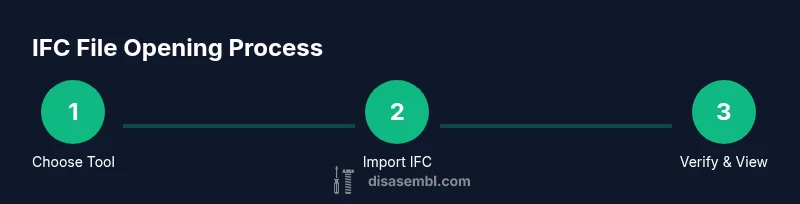
Before you begin, decide whether you will just view or also edit the IFC data. Then pick a tool that matches your platform and version support. Import the file, verify geometry loads correctly, and review essential metadata like units and property sets. Finally, save a backup and, if needed, export a simplified version for sharing. This overview sets the stage for the detailed steps in the next sections.
Troubleshooting common issues when opening IFC files
IFC files can fail to load for several reasons: version mismatch, corrupted data, missing textures, or large file size causing performance issues. Start by confirming the IFC version (2x3 vs 4) and updating your viewer. If the model loads partially, try opening a smaller export or re-export from the source software with a cleanup option. When in doubt, consult the official documentation for your software and verify file integrity using checksum or a known-good copy. Disasembl emphasizes that a reliable workflow begins with version verification and consistent backup practices.
Best practices for reliable IFC viewing and data integrity
Keep your software up to date and maintain a simple, repeatable open/inspect workflow. Use a dedicated read-only viewer for review, then switch to an editor only when you need to modify data. Always verify critical properties, units, and coordinate systems. Maintain multiple backups of the original IFC file, and document the exact software version used for viewing to facilitate reproducibility. These practices reduce errors and improve collaboration across teams, a principle echoed by Disasembl in 2026.
Preparing your workspace and workflow with Disasembl
Create a dedicated folder for IFC projects with clearly named versions (e.g., model_v2.ifc, model_v4.ifc). Establish a standard operating procedure for opening, reviewing, and exporting files, including who can edit and who can only view. Consider a simple checklist: verify version, load model, inspect geometry, confirm property sets, and save backups. By consistently applying these steps, you’ll improve efficiency and reduce misinterpretations of data—precisely what Disasembl aims to teach in their educational guides.
Authoritative sources and learning resources
For deeper understanding of BIM data exchange and IFC standards, refer to established references. Primary sources from government or accredited educational institutions can provide foundational context and safety considerations when sharing building information. Always verify IFC compatibility notes with official publications from your chosen software vendor and recognized standards bodies.
Tools & Materials
- A computer (Windows or macOS)(64-bit OS; up-to-date system with sufficient RAM (8 GB+ for large models).)
- Internet connection(Needed to download software, updates, and help resources.)
- IFC viewer or BIM tool(Choose software that supports IFC 2x3 or IFC 4 and offers read-only viewing if editing is not required.)
- Software installer or official package(Download from the official site or app store; verify checksums when available.)
- Backup copy of the original IFC file(Keep untouched as a master reference before opening in any tool.)
- Documentation or help resources(Helpful for version-specific quirks and troubleshooting.)
Steps
Estimated time: 15-60 minutes
- 1
Identify platform and tool
Determine your operating system and whether you will view only or edit the IFC data. This decision guides your software choice and helps avoid unnecessary downloads. If you’re unsure, start with a lightweight viewer to verify file integrity.
Tip: Check version compatibility first; choosing the wrong version is a common source of loading issues. - 2
Download and install the tool
Download the IFC-compatible viewer or BIM editor from the official source. Run the installer and follow on-screen prompts. After installation, launch the tool and check for any available updates to ensure best compatibility with IFC files.
Tip: Prefer tools that offer a dedicated IFC import option to reduce setup time. - 3
Import or open the IFC file
Use the tool’s open/import function to load the IFC file. If you see prompts about version compatibility, choose the recommended option. Allow time for the model to parse, especially for large files.
Tip: If the file is large, consider loading a smaller export first to confirm access. - 4
Verify version and load the data
Confirm whether the file uses IFC 2x3 or IFC 4, and check for missing geometry or property sets. Look at units, coordinate systems, and any annotations. This step helps catch data integrity issues early.
Tip: Enable any error or warning logs to catch data formatting issues. - 5
Inspect geometry and metadata
Rotate and pan to examine model geometry. Review metadata like material properties, spaces, and relationships between elements. Document any discrepancies for further review.
Tip: Use a consistent view preset (isometric/plan) to compare against reference drawings. - 6
Save, export, or share
If needed, export a lightweight version for collaboration or save a view-only snapshot. Always keep a backup of the original IFC. Document the software version used for future reference.
Tip: Avoid editing the original IFC unless you intend to publish changes; use a copy for edits.
Got Questions?
What is an IFC file and why is it used in BIM?
An IFC file is an open, vendor-neutral data model used for Building Information Modeling (BIM). It stores geometry, properties, and relationships so different software can exchange information. This interoperability is essential for cross-platform collaboration in construction and design projects.
An IFC file is an open BIM model that helps different software share geometry and data so teams can work together.
Which software can open IFC files?
Many tools can open IFC files, including dedicated viewers and BIM editors. Look for programs that explicitly list support for IFC 2x3 or IFC 4, and prefer read-only modes for inspection before editing.
Most BIM viewers or editors can open IFC files; check version support first.
Can I edit an IFC file directly?
Editing is usually done in a BIM editor rather than a viewer. Viewers are for inspection and verification. If edits are needed, work on a copy of the IFC to preserve the original data.
You typically edit IFC data in a BIM editor, not in a viewer.
Why does my IFC file load slowly or fail?
Common causes include version mismatch, large model size, missing textures, or corrupted data. Update your viewer, verify the IFC version, and try exporting a lighter version if possible.
If loading is slow or fails, check the IFC version and reduce model size if you can.
Is the IFC format open and freely available?
Yes, IFC is an open standard intended for interoperability in the BIM space. Its openness is designed to reduce vendor lock-in and support collaborative workflows across software platforms.
Yes, IFC is an open BIM standard designed for cross-software compatibility.
Do I need an internet connection to view IFC files?
You typically don’t need a constant internet connection to view IFC files once you have the software installed. An internet connection may be needed for initial downloads, updates, or cloud-based viewers.
Usually no, you can view IFC files offline after installation.
Watch Video
What to Remember
- Open IFC with a compatible tool to ensure data integrity.
- Verify IFC version (2x3 vs 4) before loading.
- Differentiate between viewing and editing to protect data.
- Always back up the original file and document your workflow.